A Customized Windows Terminal is fun and shows ownership. That’s why every once in a while I have to improve my personal terminal configuration set. This time I have updated my Terminal Settings as there have been changes in the json file. It was time to update my configuration to be aligned with the PowerShell Updates and include a cosmetic fix to get rid of the famous – “Install the latest PowerShell for new features and improvements! https://aka.ms/PSWindows” message.
Table of Contents
Installation of Windows Terminal
I only use Winget to take care of these things and this can be done easily using a powershell command.
winget install --id Microsoft.WindowsTerminal -eIf you want to use Winget on non Windows Server 2022 / 2025 legacy servers, here is a guide you can do it now. The other option is a manual installation using GitHub.
The Terminal was originally announced back in 2019 and if you haven’t been using it, better start today for a productivity boost. The article is by Thomas Maurer, who also inspired me and his blog posting on the settings.json helped me.
Goal of our Customized Windows Terminal
For my documentations and blog work I want to have a visible background to detect my work and screenshots. The second motivation was to help me using the right commands per each of the terminal tabs and support this with some visualization.
My personal most important customization is to get rid of the “Install the latest PowerShell for new features and improvements! https://aka.ms/PSWindows” message. By adding the -nologo command, this can be achieved.
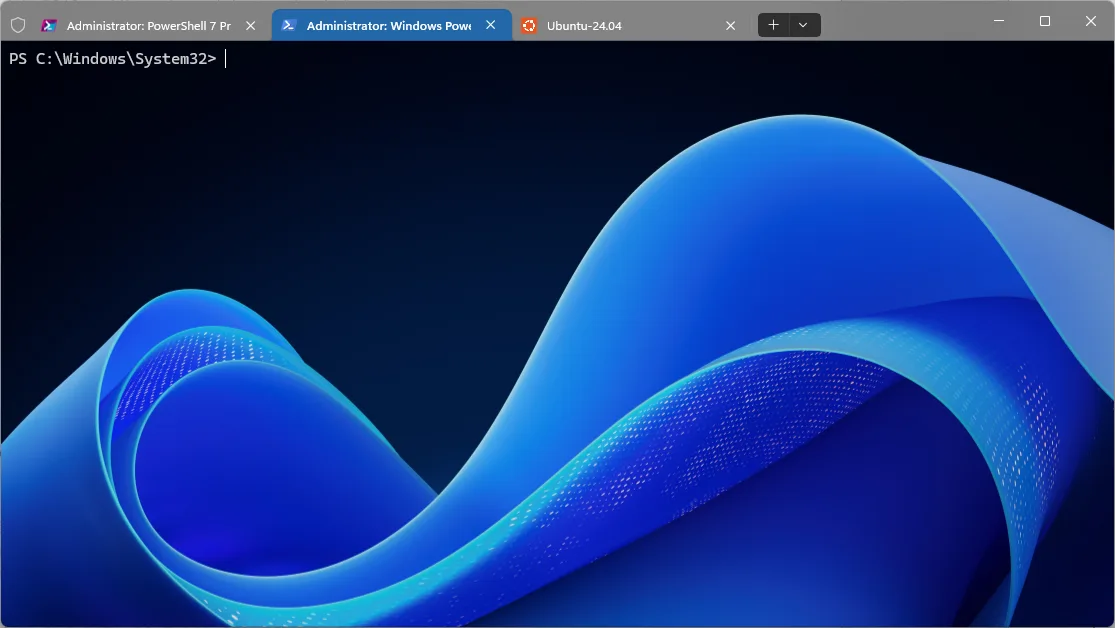
This is the command like with the modification:
"commandline": "%SystemRoot%\\System32\\WindowsPowerShell\\v1.0\\powershell.exe -nologo",Existing documentation for settings.json
To get started with customization, you should read the following guides:
- Download and Install Windows Terminal by Thomas Maurer
- My Customized Windows Terminal Settings.json by Thomas Maurer
- Customize Windows Terminal by Microsoft
- More resources on Github
Value of this documentation
First feel free to download my settings.json, how I modified it and learn where to locate the background files.
The first challenge is to find our settings.json on your client. Mine was located here: C:\Users\ahart\AppData\Local\Packages\Microsoft.WindowsTerminal_8wekyb3d8bbwe\LocalState. Make sure you change the username accordingly to your local username.
My changes to the file were with these global parameters, that are located in the upper section:
- “copyOnSelect”: true, //this will automatically copy everything I select in the cmd to my clipboard
- “firstWindowPreference”: “persistedWindowLayout”, //make sure the same windows / tabs reopen on the next start
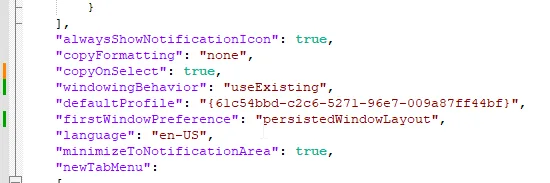
For each of the tools / commands I want to use, I do need to modify it in the “list” section of the stettings.json.
- “tabColor”: “#3c607e”, – Changes the tab color when started
- “backgroundImage”: “C:\\Users\\ahart\\OneDrive\\Bilder\\terminal\\WindowsServer 2025Background-light.png”, – does present a background fitting to the use case I have with those tools
- “backgroundImageOpacity”: 0.1 – Some pictures require opacity to be able to read correctly

Windows Terminal – List / Profil Settings
Important: My config file will not to work, because it is using files located in my onedrive path. Make sure you create files from the type png in a path on your system(s) and change it accordingly in the settings.json.
To find the RGB code for the “tabColor” I do use the Color Picker from the Powertoys.

When done correctly it will look similar to this one.
If you want to use my settings.json as a foundation for your own file, it is available here.
Conclusion
In this guide you learned how to get a Customized Windows Terminal and configure the basics of your Terminal tool. There is a lot of additional resources shared, that can take you even further.
Having a personalized touch to your environment can improve performance and feel more comfortable.
If you have any questions please don’t hesitate to reach out to me on LinkedIn, Bluesky or check my newly created Adaptive Cloud community on Reddit.