Winget is a powerful tool to automate installation and keep applications update. In my Windows Server 2022 and Windows Server 2025 test environment I use WingetUI as a graphical user interface, which will soon be renamed to UniGetUI.
Table of Contents
Recommended: Windows Server 2019 / 2022 – Using winget-install
The recommended approach to install Winget to Windows Server 2022 is the Script maintained here by asherto
Features – Source:https://github.com/asheroto/winget-install
- Installs WinGet directly from PowerShell
- Always fetches the latest WinGet version
- Automatically verifies OS compatibility
- Determines and installs the appropriate prerequisites based on OS version
- Supports x86/x64 and arm/arm64 architectures
- Allows bypassing of existing WinGet installation verification through
-Forceparameter or$Forcesession variable - Supports irm/iex one-line command using short URL
- Supports automatically relaunching in
conhostand ending active processes associated with WinGet that could interfere with the installation - Code is hosted on PowerShell Gallery
Setup using PowerShell Gallery
Install-Script winget-install -Force
Download UniGet from the official website https://www.marticliment.com or use this direct download link and manually install it.

Windows Server 2022 – Manual Installation Winget
Winget is not a component of Windows Server 2022. If you want to use it, you need to manually install it. There is a interesting discussion around WinGet for Server here, but Microsoft made the decision for Windows Server 2025 vNext to add it. If you want to use on Windows Server 2022, than you can use the following commands, which i would let you get here.
Important: I didn’t get it to work even after an hour or so of trying it. So i would not recommend it for productive environments, but there is a workaround and quick fix.
Windows Server 2022 – Get Winget by installing UniGetUI
This is my quick fix. Go to https://www.marticliment.com/wingetui/ and download the WingetUI. Perform an installation with the standards settings.
WingetUI will immediately start to work and you can use it to install packages. If you want powershell support, this is also easy.
Open WingetUI and search for Winget. Install the Winget Cli Package from the Chocolatey: community

Now you can open powershell and use winget
If you are getting an error you can try this:
Get the PackageFullName of your installed App Installer package (PowerShell): Get-AppxPackage Microsoft.DesktopAppInstaller | Select Name, PackageFullName.
Add-AppxPackage -register "C:\Program Files\WindowsApps\{PackageFullName}\appxmanifest.xml" -DisableDevelopmentMode (where {PackageFullName} is the info from the previous point).
When running this I did get the following error:
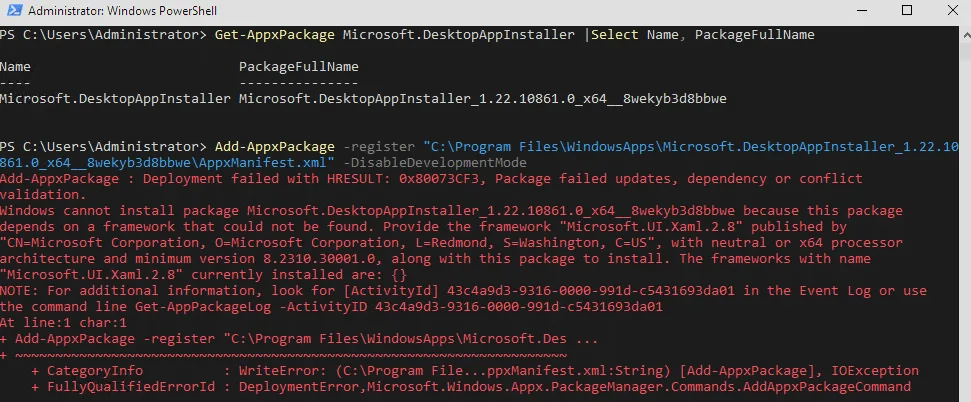
As a fix I once again used Winget to install the package by searching for Microsoft.UI.XAML.2.8

Then going to Settings -> Apps -> App execution aliases and toggling Windows Package Manager Client to On

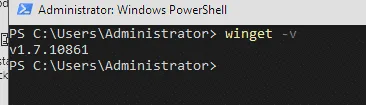
Finally I could run winget -v in both a cmd or in Windows Powershell
More help for issues can be found here: https://github.com/microsoft/winget-cli/blob/master/doc/troubleshooting/README.md
Important: I would not recommend it for productive environments, but this is to help you, if you are facing the same issue.
Windows Server 2025 vNext and WingetUI
Things are a lot easier on Windows Server 2025 as it is fully integrated into current Windows Server 2025 vNext builds.
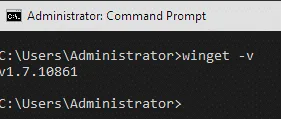
Just open a cmd and run winget -v to test the functionality.
Why do we want Winget on a server OS?
First thing. No one would ask if we want “apt” on Linux to keep the OS and it’s application up to date. Actually it is one of the most convenient Linux features.
Second reason is, that I use this to add my standard tool set to my dev environment. You can easily install applications using winget. Below is my code for the test servers.
winget.exe install --id WinSCP.WinSCP --exact --accept-source-agreements --silent --disable-interactivity --accept-package-agreements
winget.exe install --id WinDirStat.WinDirStat --exact --accept-source-agreements --silent --disable-interactivity --accept-package-agreements
winget.exe install --id Microsoft.WindowsTerminal.Preview --exact --accept-source-agreements --silent --disable-interactivity --accept-package-agreements
winget.exe install --id Microsoft.Sysinternals.TCPView --exact --accept-source-agreements --silent --disable-interactivity --accept-package-agreements
winget.exe install --id Microsoft.Sysinternals.Sysmon --exact --accept-source-agreements --silent --disable-interactivity --accept-package-agreements
winget.exe install --id Microsoft.Sysinternals.ProcessMonitor --exact --accept-source-agreements --silent --disable-interactivity --accept-package-agreements
winget.exe install --id Microsoft.Sysinternals.ProcessExplorer --exact --accept-source-agreements --silent --disable-interactivity --accept-package-agreements
winget.exe install --id Microsoft.Sysinternals.Autoruns --exact --accept-source-agreements --silent --disable-interactivity --accept-package-agreements
winget.exe install --id Microsoft.Sysinternals.BGInfo --exact --accept-source-agreements --silent --disable-interactivity --accept-package-agreements
winget.exe install --id ShareX.ShareX --exact --accept-source-agreements --silent --disable-interactivity --accept-package-agreements
winget.exe install --id PuTTY.PuTTY --exact --accept-source-agreements --silent --disable-interactivity --accept-package-agreements
winget.exe install --id Notepad++.Notepad++ --exact --accept-source-agreements --silent --disable-interactivity --accept-package-agreements
winget.exe install --id Microsoft.AzureCLI --exact --accept-source-agreements --silent --disable-interactivity --accept-package-agreements
winget.exe install --id 7zip.7zip --exact --accept-source-agreements --silent --disable-interactivity --accept-package-agreements
You can download the current version of my script for servers here and for my developer workstations here.
This will autromatically install all my standard tools within 3-6 minutes vs. downloading and manually installing could easily take over 30 minutes of manual work.

If you want to use this in a test environment, please check the Windows Server 2025 guide. The guide does start here.