Managing passwords with Proton Pass changed my password management and thus my backbone to manage my IT setup efficiently and secure. For years, local password managers like KeePassXC have been my standard to keep control over my encrypted databases. However, as my digital environments expand across operating systems, browsers, and mobile devices, manual file synchronization became complex and introduced and security risks.
This article outlines my migration from my KeePassXC setup to Proton Pass, examining how it aligns with my security principles and providing a structured walkthrough to execute the transition cleanly across all environments.
Table of Contents for Managing passwords with Proton Pass
My “reality” of Password Management in Hybrid Workspaces
In modern hybrid architectures i constantly balance operational agility with high security requirements. While enterprise identity platforms handle very often handle the corporate access, I do accumulate a long list of personal infrastructure security keys, homelab credentials, emergency break-glass accounts and third-party SaaS tokens that require secure storage outside the corporate tenant.
Relying on local-only file stores often leads to security risks, such as syncing files over unverified consumer sync clients or relying on browser-stored credentials without end-to-end zero-knowledge protection. Managing passwords with Proton Pass sounded like a better approach.
Why I Switched from KeePassXC to Managing passwords with Proton Pass
KeePassXC is an exceptional open-source tool for local-first storage, but multi-platform synchronization often requires third-party cloud shares, third party apps or WebDAV setups that introduce unnecessary complexity. My shift to managing passwords with Proton Pass was driven by several distinct capabilities that align with my modern requirements:
- Returning to a robust cloud-based solution that is outside US control, leveraging Swiss privacy protections and data sovereignty.
- Offloading credential infrastructure from self-hosted local NAS setups or custom file synchronization scripts to a fully managed SaaS platform, which is especially critical during periods like my upcoming sabbatical where infrastructure maintenance needs to be minimized.
- Native multi-platform and multi-browser synchronization without manual file locking or conflict resolution issues.
- Seamless native mobile integration across iOS and Android, replacing ecosystem-locked utilities like Apple Passwords or Google Password Manager with a unified cross-platform autofill engine.
- A transparent development roadmap backed by consistent delivery of advanced security features. Available here and here.
- A robust native Windows application suite that handles both password vaults and two-factor authentication (2FA) seamlessly.
- Linux support, ensuring consistent access across terminal-heavy workstations and desktop environments alike.
- Zero-knowledge architecture and end-to-end encryption backed by Proton’s established privacy ecosystem.
My Perspective: Security, Zero Trust, and Identity Governance
Migrating away from the Microsoft Authenticator ecosystem also removes the convenient push notification option for MFA authentications, which is a sad move for me personally as it trades away instant tap-to-approve prompts for Azure logins.
I do focus for my Windows Server, Azure and Hybrid Infrastructure on a security architecture that is built upon the pillars of Zero Trust: verify explicitly, use least privilege access, and assume breach.
While native tools like Microsoft Entra and Microsoft Authenticator excel at managing enterprise identities and corporate cloud resources, power users and infrastructure architects operate across heterogeneous environments that demand a secure vault independent of a single vendor ecosystem.
Transitioning to a modern, zero-knowledge provider like Proton Pass reinforces Zero Trust principles for non-enterprise credentials. By enforcing end-to-end encryption client-side, isolating credential storage from browser vendors, and centralizing TOTP generation into a dedicated native application across Windows and Linux, we eliminate the security gaps inherent in local file transport while maintaining absolute ownership of our cryptographic keys.
Step-by-Step Guide: Migrating from KeePassXC and Browser Safes to Proton Pass
So how did i tackle this? I did a step by step approach.
Step 1. Exporting Your Data from KeePassXC
Open your KeePassXC client and unlock your primary database.
Navigate to the top menu and select File, then Export, and choose Export to CSV file.
Save the unencrypted CSV file to a secure, local temporary location on your machine.
Important: Unencrypted CSV exports contain plaintext credentials and sensitive keys. Ensure you securely delete this file immediately after the migration is complete.
Step 2. Exporting Browser Data
Most modern browsers (Chrome, Edge, Firefox) allow you to export stored passwords. Navigate to your browser’s password manager settings, locate the export option, and save each as a separate CSV file.
Step 3. Consolidating your data before managing passwords with Proton Pass
Option 3a) Clean up before the import
Once you have your CSV exports from KeePassXC and your browsers, open them in a tool like Microsoft Excel or LibreOffice Calc.
Create a new master spreadsheet. Copy the data from each exported file and paste it into this single master sheet.
Ensure all column headers (Title, URL, Username, Password, Notes) match across the entire set. If headers differ, rename them so they are consistent.
Remove duplicate entries, keeping the most current password version for each URL.
Save the final consolidated sheet as a single CSV file. For additional security before importing, store this temporary consolidated file and your original exports in a safe space. I did use my OneDrive Personal Vault (Personal Tresor) protected by multi-factor authentication, or on an encrypted USB stick.
Option 3b) Clean up after the import
I noticed on the roadmap and announcements that an improved cleanup tool might be available for the Proton Pass solution later this year. Since I am very often a lazy person, i did take a two step approach. All password files have been imported and I clean them up driven by certain key values using the search option, i.e.
- I used 192.168.178.x networks in the past – all could be removed
- My previous employer email addresses or URLs still showed up – all could be removed
- My internal network was moved from 192.168.233.x. to 10.x – all 192.168.233.x URLs could be removed
This is very easy to do with Proton Pass as you can use the search filter and multiple selections to delete information.
You can also see when the credentials have been used the last time, modified or created. So you can use that field to clean up your data.
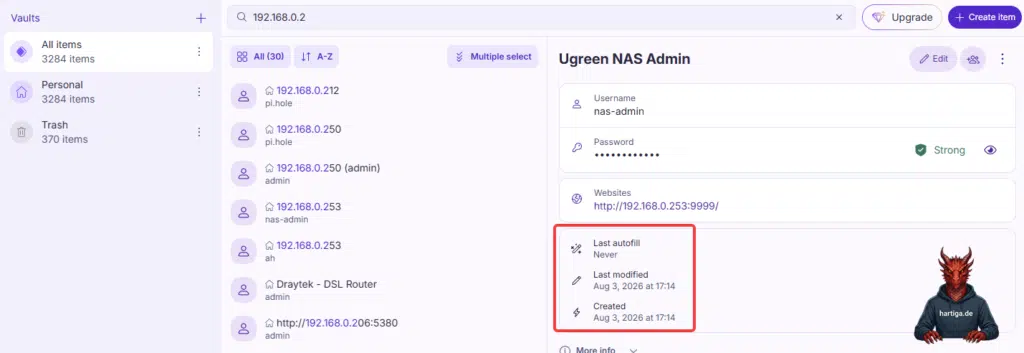
So i decided to make these 3284 passwords a problem of my future version in my journey to Managing passwords with Proton Pass.
Important: Actually you will see me clean up each record when used. So when i access a new website I will clean up all duplicates / outdated versions of each record. This way it becomes a manual task that is manageable and creates a good habit for the future.
Importing into Proton Pass
Log into your Proton Pass account via the web interface or the native desktop application.
Navigate to Settings, select Import passwords, and choose CSV as your source format.
Upload your consolidated CSV file and review the field mapping interface to ensure usernames, passwords, and URLs align correctly.
Execute the import and verify that your folder structures and entries populate successfully in the new vault.
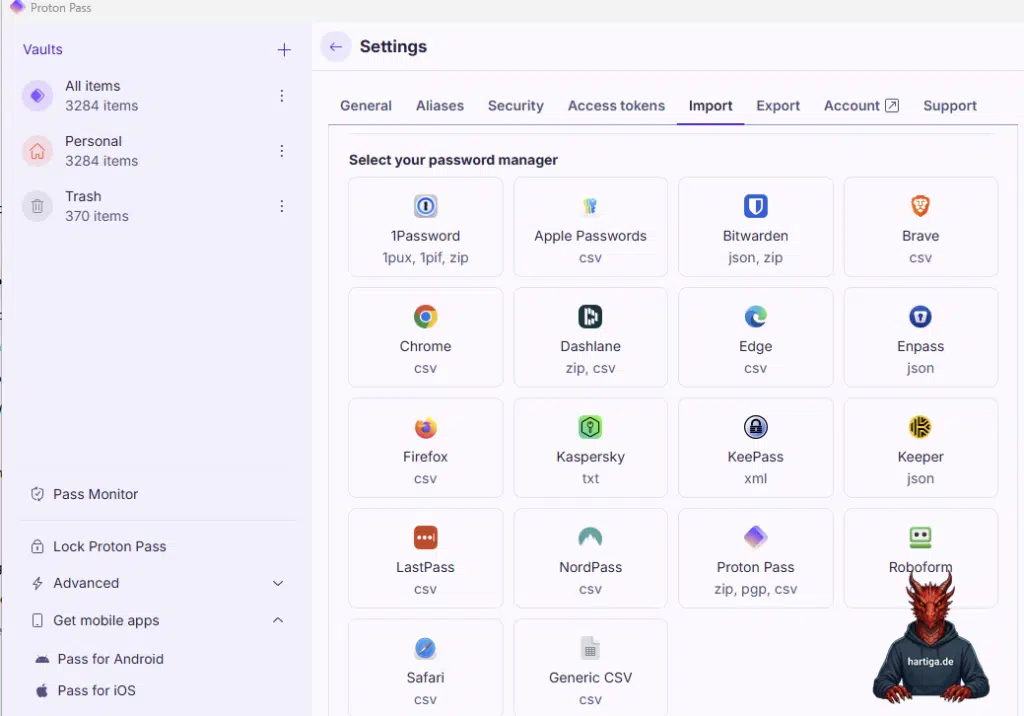
As you can see in the screenshot below, the list of supported tools as of today (10.08.2026) and imports is long.
Migrating Two-Factor Authentication (2FA) Secrets
If you stored your TOTP (Time-based One-Time Password) secrets inside KeePassXC custom attributes, ensure these are exported as part of the CSV. Proton Pass supports native 2FA token generation, allowing you to centralize your authentication codes alongside your login credentials within the native Windows and mobile apps.
There is a great guide on this available here.
Important: Personally I prefer to use the Proton Authenticator. The Proton Authenticator is also available as a multi plattform solution. I moved there a while ago as it is the only free and easy accessible Windows Version with a multi OS incl. iOS and Android synced App.
Quick Guide: Disabling Local Browser Password Safes
Once your data is successfully imported into Proton Pass and verified, you should disable the native password-saving prompts across your daily browsers to prevent conflicting popups and ensure all future credentials flow straight into your new vault.
Google Chrome
Open Chrome and click the three-dot menu icon in the upper-right corner.
Select Settings, then navigate to Autofill and passwords, and click on Google Password Manager.
Click on Settings in the left-hand menu or sidebar.
Toggle off Offer to save passwords and Sign in automatically.
Microsoft Edge
Open Edge and click the three-dot menu icon in the upper-right corner.
Select Settings, open Passwords and autofill, and click on Microsoft Password Manager.
Toggle off Offer to save passwords and passkeys.
Mozilla Firefox
Open Firefox and click the three-line menu icon in the upper-right corner.
Select Settings and click on Privacy & Security from the left panel.
Scroll down to the Passwords section.
Uncheck Ask to save logins and passwords for websites.
Setting Proton Pass as the Default Provider
To guarantee for a consistent experience, where Proton Pass automatically handles autofill, credential creation, and shortcut triggers across your operating system and browsers, you need to configure it as the default autofill provider.
Configuring Proton Pass Application Settings
Open the Proton Pass desktop application or browser extension.
Navigate to Settings and open the General or Autofill preferences section.
Important: Inside the Proton Pass extension settings under the Browsereinstellungen section, ensure you enable the option to use Proton Pass as your browser’s default password manager (“Verwende Proton Pass als Standard-Passwortmanager deines Browsers”). When active, your browser stops using its built-in manager, preventing prompt collisions and ensuring Proton Pass owns credential handling natively.
Ensure that options such as Auto-fill logins, Auto-save new logins, and Prompt to save passwords are enabled.
Configuring Browser Extensions
Install the Proton Pass extension in all your target browsers (Chrome, Edge, Firefox, or Brave).
Click the Proton Pass extension icon, open its settings, and confirm that extension permissions are granted to read and change site data so it can accurately inject fields.
Expanding to Mobile Ecosystems: iOS and Android Integration
Migrating away from local files also means breaking free from desktop silos. To achieve complete cross-device synchronization, you must integrate Proton Pass into your mobile workflows, effectively replacing built-in keychain solutions like Apple Passwords or Google Password Manager.
Installing and Configuring on iOS (iPhone / iPad)
Download the Proton Pass app from the Apple App Store and sign in with your account credentials.
Open your iOS Settings, navigate to Passwords, and select Password Options.
Disable Apple Passwords and check Proton Pass as your primary autofill provider.
Enable biometric unlocking (Face ID / Touch ID) within the Proton Pass app settings to ensure secure, instant vault access without typing master passwords on mobile.
Installing and Configuring on Android
Download the Proton Pass app from the Google Play Store and log in.
Open your Android system settings, search for Autofill service, and select Proton Pass as your system-wide autofill provider.
Enable biometric unlock (Fingerprint) in the app security preferences to streamline logins across native mobile apps and browsers like mobile Chrome or Firefox.
My Recommendations around Managing passwords with Proton Pass
When transitioning your credential infrastructure, adopt a phased cutover approach rather than deleting your legacy database immediately. Keep your old KeePassXC database and browser caches in a read-only state for at least thirty days to catch any rarely used legacy accounts, API keys, or secure notes that might not have migrated in the primary batch. Furthermore, always ensure your master password for Proton Pass utilizes a high-entropy passphrase, and immediately back up your recovery kit in a secure offline location.
Future-Proofing with Proton Pass Family for Managing passwords with Proton Pass
Moving to a unified cloud password manager opens up modern collaboration features that local file databases like KeePassXC simply cannot match. Longterm I want to replace an ecosystem-locked solutions based on Apple iCloud Keychain (could be Bitwarden or anything else for you) for household management, upgrading to the Proton Pass Family plan provides a comprehensive framework.
Conclusion on managing passwords with Proton Pass
Migrating away from a trusted local tool like KeePassXC and clearing out fragmented browser storage is never trivial, but the gains in cross-platform synchronization, native Linux support, mobile integration, desktop autotype capabilities, and integrated family vault management make Proton Pass a compelling modern alternative. Centralizing your operational credentials without sacrificing zero-knowledge security ultimately streamlines day-to-day administration across complex environments.
If you have any questions around managing passwords with Proton Pass or any other topic that I share on this blog, please don’t hesitate to reach out to me on LinkedIn, Bluesky or check my newly created Adaptive Cloud community on Reddit.
LinkedIn: https://www.linkedin.com/in/andreas-hartig/
Bluesky: https://bsky.app/profile/hartiga.de
My YouTube Channel: https://www.youtube.com/@hartiga