Managing Group Policy Objects across a complex Active Directory environment has always been a challenge. Administrators often inherit hundreds of GPOs with overlapping configurations, stale settings, and hidden conflicts. Finding these issues manually requires clicking through endless report screens or exporting massive text files.
Policy Analyzer solves this by giving you a fast, reliable way to identify drift, conflicts, and missing baseline settings without touching your production environment.
Table of Contents
Introduction
Managing Group Policy Objects across a complex active directory environment has historically been a challenge. Administrators often inherit hundreds of GPOs with overlapping configurations, stale settings, and hidden conflicts. Finding these issues manually requires clicking through infinite report screens or exporting massive text files.
How GPO Policy Analyzer performs gap analysis
Policy Analyzer performs gap analysis by reading the underlying registry.pol files inside each GPO and converting them into a normalized rule set. It maps each setting to its corresponding registry path, ADM/ADMX template, and policy category. Once multiple rule sets are loaded, the tool compares them line by line and highlights:
- Conflicting values (same key, different data)
- Missing settings (baseline defines a value your GPO does not)
- Redundant entries (multiple GPOs define the same value)
- Low-level registry operations such as
[[[create key]]]or[[[delete]]]
This makes it extremely easy to spot drift between environments, legacy configurations, or misaligned security baselines.
What Policy Analyzer cannot do
While Policy Analyzer is incredibly effective for data analysis, it is entirely read-only. It cannot modify, create, or link GPOs inside your active directory domains. You cannot use it to fix the conflicts it uncovers; those changes must still be performed manually via the Group Policy Management Console.
Policy Analyzer is a static analysis of the policy files and registry data. It does not calculate live Group Policy processing order, site-domain-OU links, security filtering, or WMI filters. It will show you that two GPOs conflict, but it does not tell you which one wins in production on a specific client machine—that still requires tools like Rsop.msc or Gpresult.exe. Finally, it lacks native command-line parameters or an API, meaning you cannot easily automate the generation of its rule files or comparison reports via nightly PowerShell tasks.
Source: Microsoft Blog “New tool: Policy Analyzer“
Because of these limitations, Policy Analyzer should be used as a visibility and auditing tool and not as a replacement for traditional GPO management or troubleshooting utilities.
My three use cases for GPO Policy Analyzer
When working with GPO Policy Analyzer I have identified three main use cases for me in the past.
- Compare a Windows Server 2025 Baseline version. Useful when Microsoft releases a new baseline version and you want to focus only on the changes.
- Compare a GPO set from a specific date with the current GPO Export. Perfect for troubleshooting drift or validating changes after a migration.
- Compare a GPO Export with the expected setting / baseline from a security auditor and identify the gaps. Ideal for compliance checks and gap analysis.
Important: Create daily or weekly exports / backups of your GPOs. In the past we managed that with AGPM, but now we need to run a backup and restore export ourself. This will also act as your baseline for troubleshooting.
How to set up and run your first comparison
Step 1: Download and extract the tools
Download the Microsoft Security Compliance Toolkit from the official Microsoft site. Extract the ZIP file containing Policy Analyzer to an administrative workstation. It is portable and runs without installation. Check for the current link here.
In the following video we will download the while Microsoft Security Compliance Toolkit as we will also use the Server Baselines to create a copy of data to use within the GPO Policy Analyzer.
Step 2: Collect your GPO backups
Export or back up the Group Policy Objects you wish to analyze using the Group Policy Management Console. Save these backups into a dedicated folder on your local machine. To back up every GPO in your domain to a specific directory, run the following command in an elevated PowerShell session:
Backup-Gpo -All -Path "\\nas-file-2025\Files\Tools\PolicyAnalyzer_40\Policy Rules\Production_Current"Replace the \\nas-file-2025\Files\Tools\PolicyAnalyzer_40\Policy Rules\Production_Current\ with a path that fits for your environment.
Important: This command can run for a long time in large environments. You can also use this command to create daily / weekly / monthly snapshots of your GPOs with scheduled tasks. Check this blog article to see how to create scheduled tasks using powershell.
Step 3: Launch the utility and import data
Run PolicyAnalyzer.exe. Click the Add button to import your GPOs. Select the folder containing your GPO backups. The tool will scan the files, map the administrative template paths, and ask you to save the compiled data into a single file with a .PolicyRules extension.
This way you can import a full set of Windows Server GPOs for your organization and compare it against the Windows Server 2025 baseline. To learn more about Windows Server baselines check my guide here.
Step 4: Perform the comparison with GPO Policy Analyzer
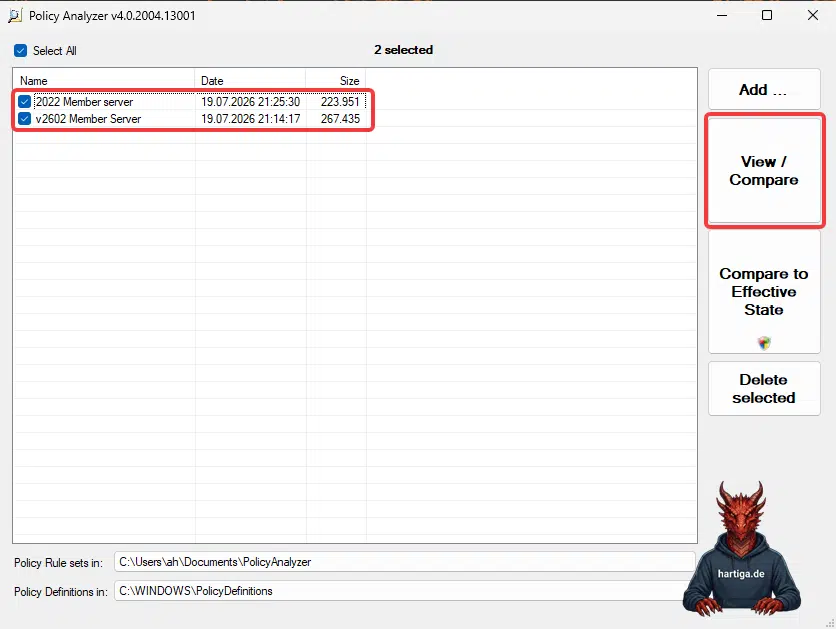
Once the rules file is created, select the checkbox next to it in the main window. Click the Compare button. If you want to compare your production set against a baseline, select both your custom rules file and the official Microsoft baseline rules file simultaneously before clicking compare.
Important: If you see raw text like [[[create key]]] or [[[delete]]] in the result grid, this represents low-level commands hidden inside the registry.pol files. A [[[create key]]] flag means the policy instructs the OS to build a specific registry path without setting a value, while a [[[delete]]] flag indicates a policy explicitly stripping a registry value out.
My main use is actually to perform deep filtering or present the data to IT auditors, use the Export to Excel function. The resulting spreadsheet preserves the exact path structure, making it much easier to sort by specific registry paths or policy names than navigating the compact UI grid.
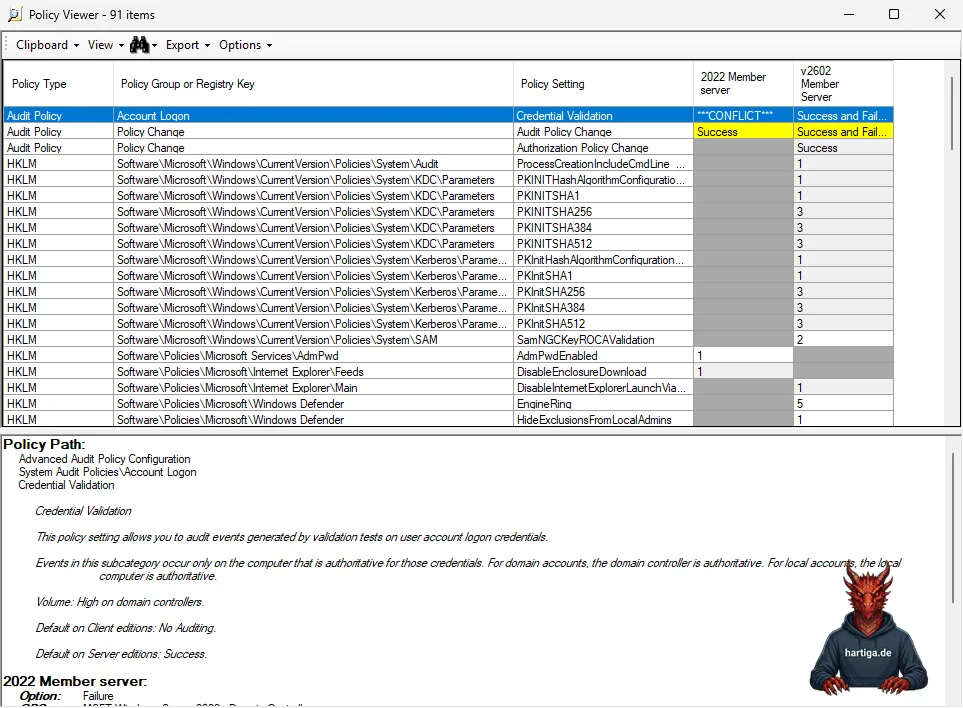
In the screenshot below we will compare a Windows Server 2022 Member Server (User & Computer) GPO baseline set with the v2602 for Windows Server 2025. This is only to visualize how it will look like and not how you will work using it.
The important functions are to view “show only differences” and export to excel.
My recommendations for using the GPO Policy Analyzer
When using Policy Analyzer, do not try to analyze your entire active directory structure at once. The comparison grid quickly becomes overwhelming if you import hundreds of unrelated GPOs. Focus on one specific scope at a time, such as your standard workstation policies or your domain controller hardening group.
Always keep a clean, untouched copy of the latest Microsoft Security Baseline .PolicyRules files in your working directory. Whenever a major new Windows Server or Windows client build drops, run your production rule sets against the new baseline file first. This immediately exposes drifted settings or new security controls that your legacy infrastructure might be completely missing.
Conclusion on GPO Policy Analyzer
Policy Analyzer bridges the gap between traditional GPO management and modern visibility requirements. It doesn’t replace Active Directory tools, but it dramatically reduces troubleshooting time by showing exactly where your policies diverge, conflict, or fail to meet current baselines. For environments with long-lived GPOs, it’s one of the most valuable analysis tools you can add to your workflow.
If you want to discuss this topic further or challenge any of the ideas, connect with me on LinkedIn or Bluesky — or join the Adaptive Cloud community on Reddit.
LinkedIn: https://www.linkedin.com/in/andreas-hartig/
Bluesky: https://bsky.app/profile/hartiga.de
Adaptive Cloud community on Reddit: https://www.reddit.com/r/AdaptiveCloud/
My YouTube Channel: https://www.youtube.com/@hartiga
Links
Microsoft Security Baselines Blog – New tool: Policy Analyzer
Pretty-Policy-Analyzer – Alternative solution with AI
Security Baselines – Microsoft Learn