Download and prepare for vNext is your first step, to stay ahead in managing your modern infrastructure in the future. With the next generation of Windows Server currently tracking through preview builds under the technical banner Windows Server vNext, infrastructure architects and systems engineers can already begin validating the foundation for the coming decade.
From ReFS-formatted boot volumes and kernel-level NVMe-oF initiators to post-quantum cryptography (ML-DSA) and native Azure Arc onboarding, vNext represents a massive architectural leap.
This guide delivers an end-to-end, actionable walkthrough for getting Windows Server vNext downloaded, deployed in an isolated evaluation lab.
Table of Contents on how to Download and prepare for vNext
Downloading the Preview Media & Release Baseline
Microsoft distributes Windows Server vNext media exclusively through the Windows Server Insider Program, so you need to follow this process to get to download and deploy Windows Server vNext.
Here is a Step by Step guide to get access and register your personal account via the Windows Insider Program for Business
- 1. Go to https://www.microsoft.com/en-us/windowsinsider/for-business-getting-started-server
- 2. Register for the Windows Insider Program for Windows Server using your personal account or a business account
- 3. Download the current Windows Server vNext edition current build
- 4. Download the Microsoft Server Language and Optional Features Preview current build
- 5. (optional) Download the latest and greated Windows Admin Center to try that out too
Important: The URL https://www.microsoft.com/de-de/software-download/windowsinsiderpreviewserver or any other regional URL might not work (broken as of 16.08.2026). Make sure you use: https://www.microsoft.com/en-us/software-download/windowsinsiderpreviewserver
- Navigate to the Windows Server Insider Preview Downloads portal.
- Select your edition and format:
- ISO Image: Datacenter & Standard (Desktop Experience and Server Core).
- VHDX Image: Pre-configured virtual hard disk for rapid Hyper-V spinning.
- Azure Edition: Available directly within Azure Marketplace for cloud-native evaluation.
Important: If you are looking for a hash verification of your Windows Server vNext ISO, there is none anymore that I could find. This is most likely related to the change that download links are now valid 24 hours on the new download portal. To verify your download check on the HTTPS connection in your browser and only use official download links through the insider portal.
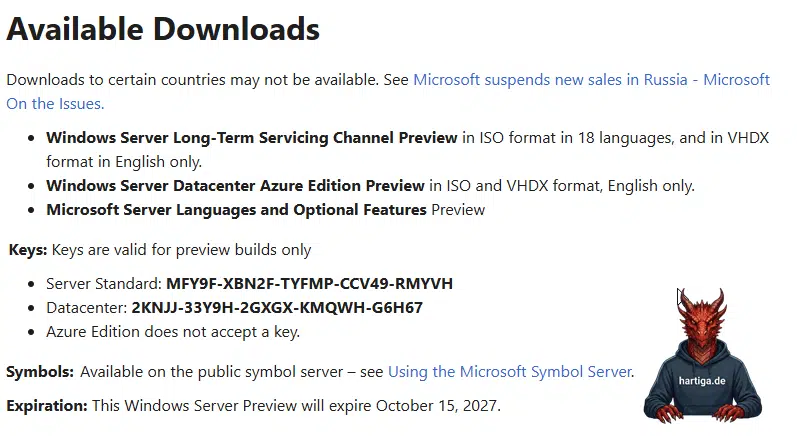
Windows Server vNext serial numbers
You can find the current Windows Server vNext Serial numbers in the latest announcements. Check Announcing Windows Server vNext Preview Build 29641 from the 10.08.2016 for the latest as per this posting. Preview Build 29641 extends the expiration date of the preview builds to 15.10.2027.
Prepare your infrastructure for vNext
Never deploy technical preview builds into production routing fabrics. Build an isolated VLAN or Host-Only Virtual Switch with a dedicated jump host and perimeter gateway. While you could deploy it into your existing Windows Server 2025 homelab, I would recommend building your own VLAN and subnet, because you want to try our the new Active Directory and this needs a new Active Directory with DNS / DHCP for full testing.
This is my upcoming design.

Plan for the required hardware per Windows Server vNext and the used hypervisor or physical hardware.
- UEFI Generation 2 with Secure Boot enabled.
- TPM 2.0
- Minimum 4 vCPUs, 8–16 GB dynamic/static RAM.
- NVMe or SCSI controller
Conclusion on Download and prepare for vNext
Windows Server vNext isn’t a minor release for me, it’s a structural shift. If you want to understand it, you need a clean, isolated lab and the current Insider preview media. The new download portal, the 24‑hour link model, and the missing ISO hashes are simply part of how Microsoft ships vNext today, so verifying the HTTPS source is the only reliable integrity check.
Once the ISO is in your lab, the real work begins: testing ReFS boot, the updated AD schema, PQC, Arc onboarding, and how the OS behaves on modern hardware. None of that can be evaluated in a production network or a mixed legacy environment.
If you want to be ready for vNext, deploy it. Hands‑on beats guessing every time. See the other part’s for the full picture.
- Part 1: What Is Windows Server vNext and Why Should You Care?
- Part 2: Download and prepare for vNext (You are here)
- Part 3: Deploy and Configure Windows Server vNext
Additional Links around download and prepare for vNext
Windows Server Insiders – Windows Server Insiders Community discussions for Windows Insiders for Business Program
Windows Insider Program – Get started being a Windows Insider with Microsoft
About the Windows Insider Program – More details from Microsoft.