vNext ReFS, what a great match. When Microsoft introduced the Resilient File System (ReFS) back in Windows Server 2012, the vision was clear: replace aging NTFS structures with a modern file system built for massive scale, proactive self-healing, and virtualized workloads. Yet for 14 years, infrastructure architects lived with an awkward split personality in their server designs. While we happily formatted our Storage Spaces Direct (S2D), Azure Local capacity tiers, and backup repositories with ReFS, our operating system root drive ($C:$) remained locked to NTFS.
With the Windows Server vNext preview branch (starting with the Build 29531 baseline reset and Build 29550+), that 14-year limitation is officially gone. You can now format the system boot volume ($C:$) directly with ReFS during Windows Setup.
In this architectural deep dive, let’s look beyond the release notes at what ReFS already delivers on data volumes today, why bringing it to the boot partition matters for day-to-day operations, and what limitations you need to respect in your lab.
Table of Contents
Why We Already Rely on ReFS Today (And Where It Beats NTFS)
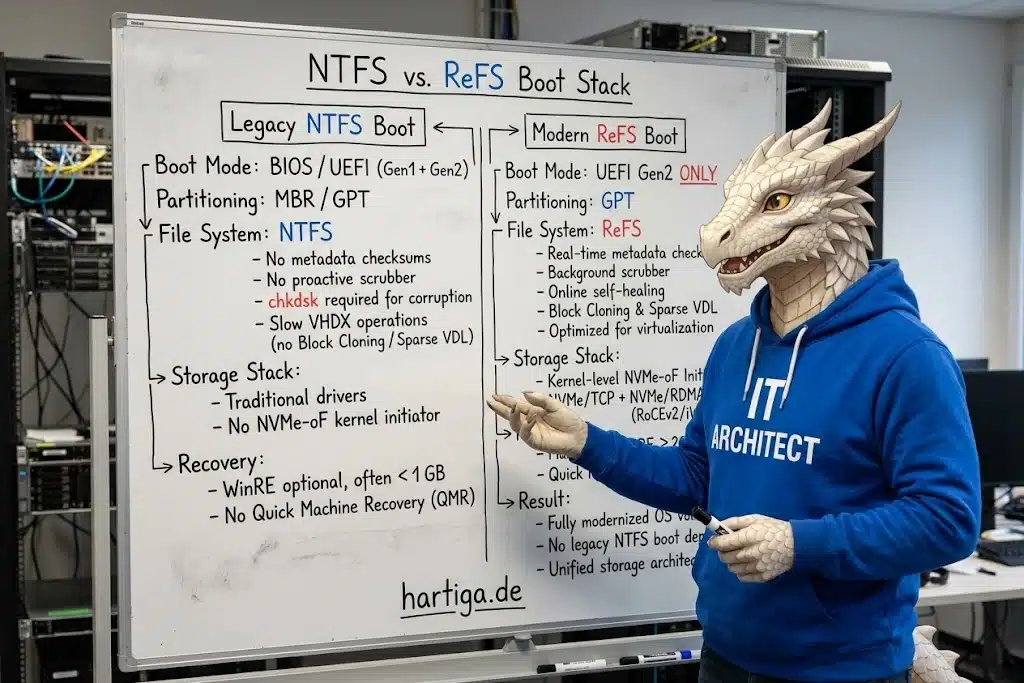
If you operate Hyper-V clusters, Storage Spaces Direct (S2D), or modern backup targets, ReFS is already the gold standard. Unlike NTFS, which was designed for general-purpose workloads decades ago, ReFS focuses on three core pillars: Resiliency, Performance, and Scalability.
| Feature / Capability | NTFS (Legacy OS Default) | ReFS (vNext OS & Data) |
|---|---|---|
| Max Volume Size | ~256 TB | 35 PB |
| Metadata Corruption Check | Offline chkdsk required | Real-time Checksums |
| Proactive Error Scanner | No | Built-in Scrubber |
| VHDX Creation / Expansion | Physical zeroing (Slow) | Sparse VDL (Seconds) |
| VM Checkpoint Merging | Full data I/O copy | Block Cloning (Pointers) |
| File System Encryption | Yes (EFS) | Yes (WS 2025+) |
| Boot Volume Support | BIOS (MBR) & UEFI (GPT) | UEFI Gen 2 Only (vNext) |
Accelerated Virtualization Primitives
For virtualization engineers, two ReFS capabilities make NTFS feel sluggish by comparison:
- Block Cloning: Instead of reading and writing gigabytes of physical blocks during file copy or VM checkpoint merge operations, ReFS simply duplicates metadata references. Cloning a massive template VHDX or merging a snapshot becomes a near-instantaneous metadata operation with minimal storage I/O impact.
- Sparse Valid Data Length (VDL): Provisioning or expanding a fixed-size VHDX on NTFS requires zeroing out the entire file across the disk subsystem, taking tens of minutes. With Sparse VDL, ReFS zeroes large files rapidly, dropping fixed VHDX creation times from minutes to mere seconds.
Resiliency and the Background Scrubber
- Integrity Streams: ReFS protects all file system metadata with checksums by default and optionally extends checksum validation to file data.
- Proactive Error Correction (Scrubber): Beyond verifying checksums on reads and writes, ReFS runs a background data integrity scanner known as a scrubber. It periodically scans the volume to detect latent bit-rot on cold blocks and proactively triggers repairs before an application ever hits a bad sector.
- Online Self-Healing without
chkdsk: When paired with Storage Spaces or Storage Spaces Direct (mirror or parity), ReFS automatically repairs corrupt blocks online using alternate copies. Even on basic standalone disks where no mirror copy exists, ReFS salvages data by isolating and removing corrupt files from the namespace while keeping the volume online, eliminating the dreaded multi-hour offlinechkdskmaintenance window.
Ongoing Evolution: Deduplication and Hot Data
ReFS has steadily closed the feature gap with NTFS over recent releases:
- Data Deduplication has been supported since Windows Server 2019 (1809), and Microsoft is actively expanding built-in ReFS deduplication optimized specifically for “hot” data workloads in vNext.
- File-level Snapshots arrived in Windows Server 2022, and native File System Encryption landed in Windows Server 2025 alongside BitLocker and block system compression.
Why ReFS Boot in Windows Server vNext Is a Big Deal
Until Build 29531 / 29550, every Windows Server still required an NTFS boot volume ($C:$). Bringing ReFS to the operating system partition changes the baseline in three practical ways:
OS Metadata Integrity & Crash Prevention:
The Windows side-by-side component store (WinSxS), driver repository, and system registry sit on C:. Formatting the root partition with ReFS brings real-time metadata checksumming directly to the operating system runtime, catching silent storage media degradation early.
Synergy with Quick Machine Recovery (QMR):
Windows Server vNext pairs ReFS boot resiliency with Quick Machine Recovery (QMR) under the Windows Resiliency Initiative. If a boot-critical driver failure prevents a server from starting, QMR boots into the Windows Recovery Environment (WinRE) and pulls targeted remediations or rollbacks via trusted Windows Update pipelines.
A Unified Modern Storage Stack:
Combine a native ReFS boot volume with the new kernel-level NVMe-over-Fabrics (NVMe-oF) Initiator (supporting both NVMe/TCP over standard Ethernet and NVMe/RDMA over RoCEv2/iWARP via nvmeofutil.exe), and you can run an entire hypervisor host without legacy NTFS boot volumes or third-party SAN multipathing drivers.
Requirements, Partition Layout, and Known Limitations
Before deploying ReFS boot in your lab, there are strict architectural rules you must follow. Legacy habits might break your deployment.
This is the Windows Server vNext ReFS Boot Disk Layout:
- Partition 1: EFI System Partition (FAT32, ~100-260 MB) |
- Partition 2: Microsoft Reserved Partition – MSR (16 MB) |
- Partition 3: Primary OS Root Volume (C:\ -> Formatted as ReFS) |
- Partition 4: Windows Recovery Environment – WinRE (Minimum 2 GB!)
Mandatory Prerequisites
- UEFI Firmware Only: ReFS boot strictly requires UEFI firmware. Legacy BIOS and MBR partitioning are not supported. In virtualized environments, you must use Generation 2 VMs.
- Clean Installation Required: You cannot convert an existing NTFS boot drive to ReFS in-place, and upgrading from pre-reset Insider builds (26525 or older) is not supported. Perform a clean install starting from Build 29531 / 29550 or newer (such as Build 29641) and select ReFS in the formatting dialog for Partition 3.
Critical Warning: The 2 GB WinRE Partition Rule
When you install Windows Server vNext on a ReFS boot volume, setup automatically creates a minimum 2 GB WinRE partition. Keep your hands off this partition in custom partitioning scripts:
- If the WinRE partition runs out of space during servicing updates, Windows Server may automatically disable WinRE (while leaving the partition intact).
- Never delete the WinRE partition to expand your C: volume over it: As Microsoft explicitly notes in the release documentation, deleting the WinRE partition and extending the ReFS boot volume over it makes recovery impossible without a complete clean installation.
Features Still Unavailable on ReFS
Even in vNext, ReFS intentionally leaves behind legacy NTFS baggage. ReFS does not support File System Transactions (TxF), Object IDs, Disk Quotas, Offloaded Data Transfer (ODX), removable media, or volume shrinking. Additionally, 8.3 short filenames are not natively supported (though many are simulated via symlinks). Make sure legacy line-of-business installers do not rely on hard-coded 8.3 paths before putting them on an ReFS system drive.
Useful Links & Official Documentation on vNext ReFS
Resilient File System (ReFS) Overview & NTFS Feature Matrix | Microsoft Learn
ReFS Block Cloning Architecture | Microsoft Learn
ReFS Integrity Streams & Scrubber | Microsoft Learn
Announcing Windows Server vNext Preview Build 29641 | Microsoft Tech Community
Introducing the Windows NVMe-oF Initiator Preview | Microsoft Tech Community
Conclusion on vNext ReFS
For over a decade, we accepted NTFS as the immutable baseline for our server operating system drives, reserving ReFS exclusively for data tiers, backup targets, and storage spaces. With Windows Server vNext, that architectural divide is finally history.
Bringing ReFS to the boot volume C: is much more than a cosmetic update—it bridges a long-standing gap in high-end data center resilience. By extending real-time metadata checksums, block cloning efficiencies, and background integrity scrubbing directly to the operating system root, Microsoft has given us a modernized storage stack built for the demands of elastic virtualization and high-uptime environments.
The future of server architecture is resilient from the metal up. Whether you are prepping your lab for vNext preview builds or planning your long-term infrastructure roadmap, formatting your boot drive with ReFS is a foundational step forward. Let’s use reFS in our lab and get started here.
If you have any questions around Windows Server vNext or any other topic that I share on this blog, please don’t hesitate to reach out to me on LinkedIn, Bluesky or check my newly created YouTube channel.
LinkedIn: https://www.linkedin.com/in/andreas-hartig/
Bluesky: https://bsky.app/profile/hartiga.de
My YouTube Channel: https://www.youtube.com/@hartiga