Deploy Windows Server vNext right after the architectural deep dive in Part 1 and the prerequisite planning in Part 2, it is time to get hands‑on. Evaluating Windows Server vNext Insider Preview builds is where theoretical benefits (like ReFS Boot and ML-DSA Post-Quantum Cryptography) become tangible validation scenarios for your IT engineering teams.
Windows Server vNext definitively shifts the server baseline toward secure, resilient, and hybrid‑ready infrastructure. This means the old rules are dead: legacy Generation 1 templates, MBR disk partitioning, and BIOS firmware are gone.
Table of Contents
Hardware Prerequisites & Lab Environment to Deploy Windows Server vNext
For this walkthrough, I am utilizing a unique hardware platform: the Ugreen NASync DXP4800 Plus as the host platform.
This is a compact, robust, Intel‑based NAS that supports UEFI boot, modern NVMe storage subsystems, and virtualization through its underlying Linux‑based KVM stack. It provides an excellent, isolated hardware lab fabric to test vNext’s modern primitives without touching corporate routing.
Minimum Lab Configuration
To replicate this deployment, whether on standard hypervisors like Hyper‑V, Proxmox VE, or on bare-metal lab hardware like the Ugreen NASync, ensure you satisfy these critical primitives.
- 4 vCPUs (Intel Core i5-1235U equivalent)
- 8–16 GB RAM (Static Recommended for Previews)
- NVMe or SCSI controller
- Isolated Lab VLAN / ‘Host-Only’ Virtual Switch
- UEFI Generation 2

For more recommendations check Part 2. “How to Download and prepare for vNext – Windows Server 2028“
The Important Note on vTPM Enrollment
AWhile the Ugreen NASync DXP4800 Plus platform provides robust KVM virtualization, its underlying stack does not natively expose a virtual TPM 2.0 (vTPM) interface to the guest operating system.
However, based on my testing of the latest preview builds (e.g., Build 29641), strict vTPM hardware enforcement is not yet active for the vNext servicing stack updates or OS installation inside a virtual environment. This means installation, servicing updates via sconfig, and native ReFS boot validation all work flawlessly in an isolated lab even without a vTPM device. This allows us to validate core OS features today on platforms that might be slightly behind on the vTPM front.
The Installation Phase & ReFS Boot Setup to Deploy Windows Server vNext
Prepare your Virtual Machine in your prefered infrastructure. This is my VM on the UGREEN NASync DXP4800 Pro.
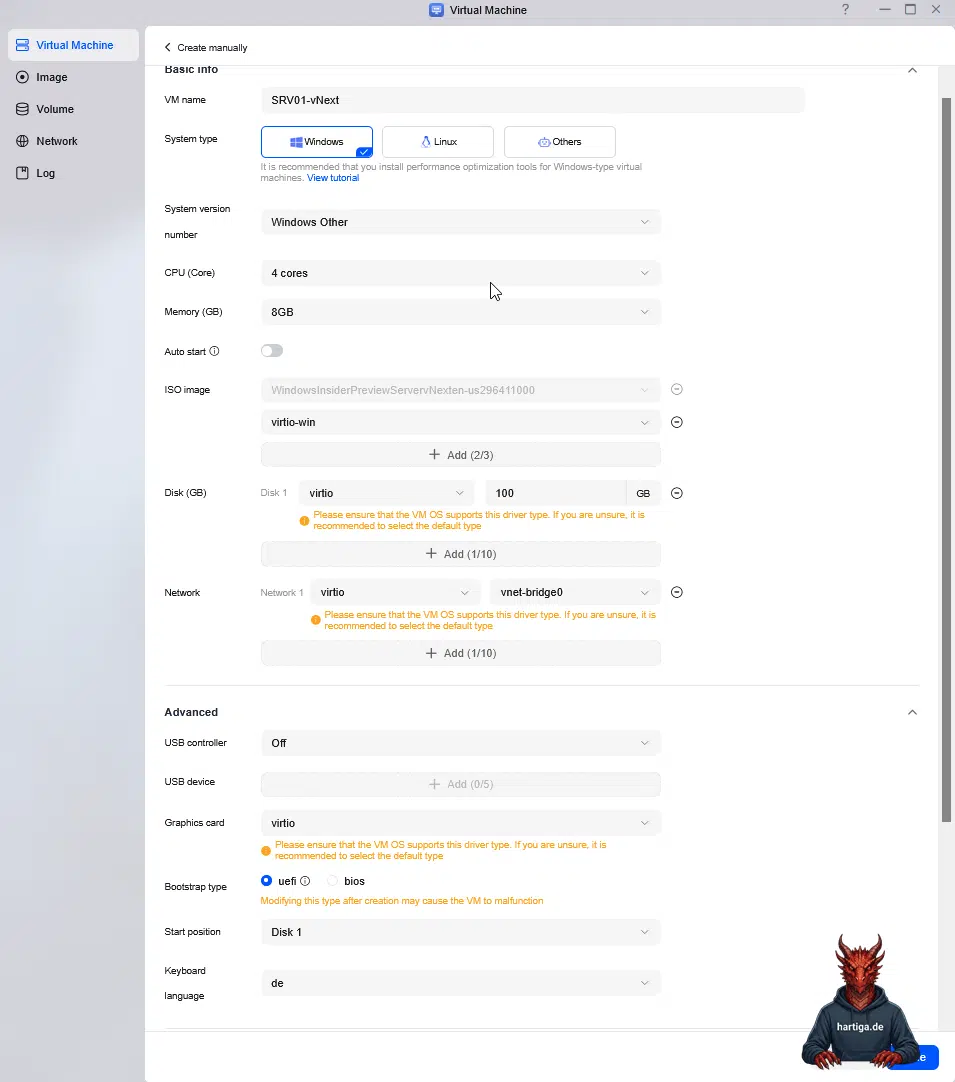
We start by booting from the Windows Server vNext Insider ISO downloaded in Part 2.
Important: Using the UGREEN Hardware and it’s virtualization stack, we will not be able to use ReFS. It is time to get new hardware for me, so I can validate this technology in the lab. A disapointing learning during the creation of this blog, but this is why we evaluate things hands on. I will be providing an updated video with ReFS later.
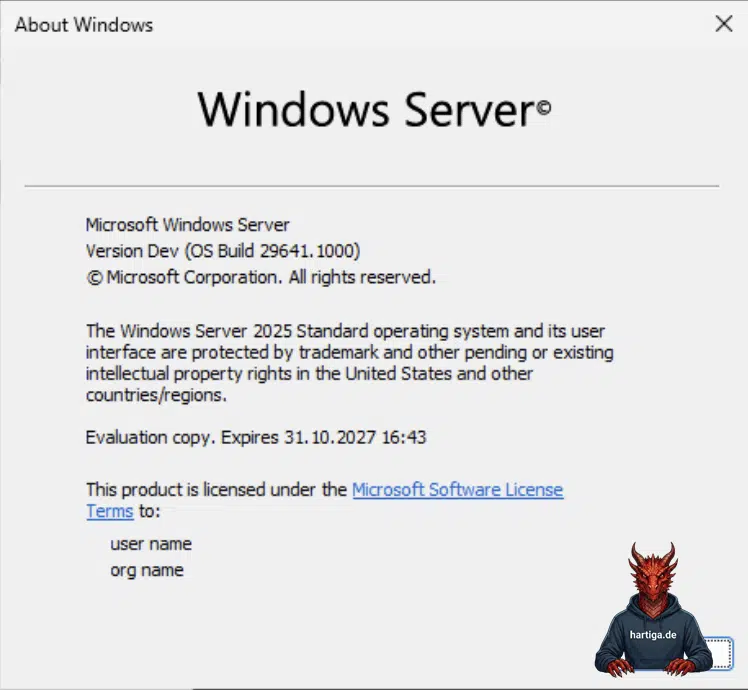
As you can see the installation looks very much like Windows Server 2025 and that is expected and desired. All we got at the end, was an updated Windows Version screen, showing our vNext.
If you want to see ReFS being chosen, please read the great blog article here by 4sysops with more details on ReFS as well.
Conclusion on Deploy Windows Server vNext
Let’s be honest — the experiment didn’t end with fireworks or a shiny new ReFS‑boot splash screen.
At the end of the day, all we really had to show was a winver dialog that looked slightly different, quietly confirming Build 29641 Dev.
But that’s exactly what makes this kind of lab work valuable: it exposes the real‑world limitations that glossy release notes never mention.
It wasn’t fancy, but it was honest engineering. Every failed setup and missing option taught something about how Windows Server vNext actually behaves outside Microsoft’s lab. And that’s the kind of insight that makes the next iteration sharper, faster, and closer to production reality.
If you have any questions around Windows Server vNext or any other topic that I share on this blog, please don’t hesitate to reach out to me on LinkedIn, Bluesky or check my newly created YouTube channel.
LinkedIn: https://www.linkedin.com/in/andreas-hartig/
Bluesky: https://bsky.app/profile/hartiga.de
My YouTube Channel: https://www.youtube.com/@hartiga