Your PolicyDefinitions Folder is missing? The GPO Central Store is key for Managing Group Policy Objects (GPOs) across multiple domain controllers can introduce configuration drift if administrative templates are not synchronized. By default, the Group Policy Management Editor relies on files stored on the local administrator’s workstation. This architecture introduces consistency risks across the IT team.
This technical guide covers the purpose of the Central Store, why the policy folder is missing by default, and how to configure it to establish a single source of truth for your domain environment.
Table of Contents
Introduction to GPO Central Store
When modifying Administrative Templates within a Group Policy Object, the management console needs structural files (.admx) and language files (.adml) to render the available settings. Without a centralized repository, the console pulls these files from the local computer’s storage layer.
If multiple administrators edit policies from different workstations running different operating system patches, they will see conflicting policy options. To eliminate version divergence, Active Directory allows the creation of a centralized network repository that forces all administrative tools to pull from the exact same files.
Important: By default in a newly created Active Directory the PolicyDefinitions Folder is missing and that is ok.
The Architecture of the GPO Central Store
The GPO Central Store is a specialized folder structure built inside the domain’s volatile system volume (SYSVOL) share. Because SYSVOL uses Distributed File System Replication (DFSR) natively, any file placed within this specific directory automatically replicates to every domain controller in the enterprise.
When the Group Policy Management Console (gpmc.msc) initializes an edit session, it looks for the presence of this network folder. If detected, it bypasses the local machine’s storage entirely. This provides an identical administrative interface across all systems, enabling the standard integration of third-party templates like Winget AutoUpdate (WAU), browsers, or security agents.
Troubleshooting: Help, My PolicyDefinitions Folder is Missing
To build the GPO Central Store, the files must match the standard structural paths and later will be used for Group Policy automation https://hartiga.de/windows-server/automation-using-group-policy/.
Executing this deployment requires domain administrator privileges on your primary domain controller or a management workstation.
Step-by-Step Initial Configuration
Folder Structure Construction:
- Connect to your primary domain controller and navigate to the network policy path:
C:\Windows\SYSVOL\sysvol\<Your-Domain-Name>\Policies\ - Create a new directory named exactly
PolicyDefinitions - Enter the new directory and create a subfolder for your operating language, such as
en-USfor English orde-DEfor German.
SYSVOL
 └── Policies
      └── PolicyDefinitions
           ├── *.admx
           └── en-US/*.adml
Seeding baseline Windows Templates:
Open a local file explorer on your most up-to-date administrative machine and navigate to the native template library: C:\Windows\PolicyDefinitions\
Copy all files ending with the .admx extension from this root directory.
Paste these files directly into your new network path: \\Your-Domain-Name\SYSVOL\Your-Domain-Name\Policies\PolicyDefinitions\
Return to the local machine’s directory and enter the language folder (e.g., \en-US\).
Copy all files ending with the .adml extension.
Paste these language files into your network language subfolder: \\Your-Domain-Name\SYSVOL\Your-Domain-Name\Policies\PolicyDefinitions\en-US\
Important: Always seed the GPO Central Store using files from your most heavily updated operating system build. If you copy templates from an older Windows Server version instead of a fully updated Windows 11 or Windows Server 2025/2026 system, modern security policies and OS features will be stripped from your group policy configuration view.
Verification and Troubleshooting of the GPO Central Store
Confirming the operational state of the GPO Central Store requires a visual check inside the policy editor.
Open Group Policy Management, right-click any existing GPO, and choose Edit. Expand Computer Configuration, then expand Policies, and click directly on Administrative Templates.
Look at the header line in the workspace or the status block in the description section:
- If the store is active, the text will explicitly state: “Policy definitions (ADMX files) retrieved from the GPO central store.”
- If the configuration failed, it will read: “Policy definitions (ADMX files) retrieved from the local machine.”
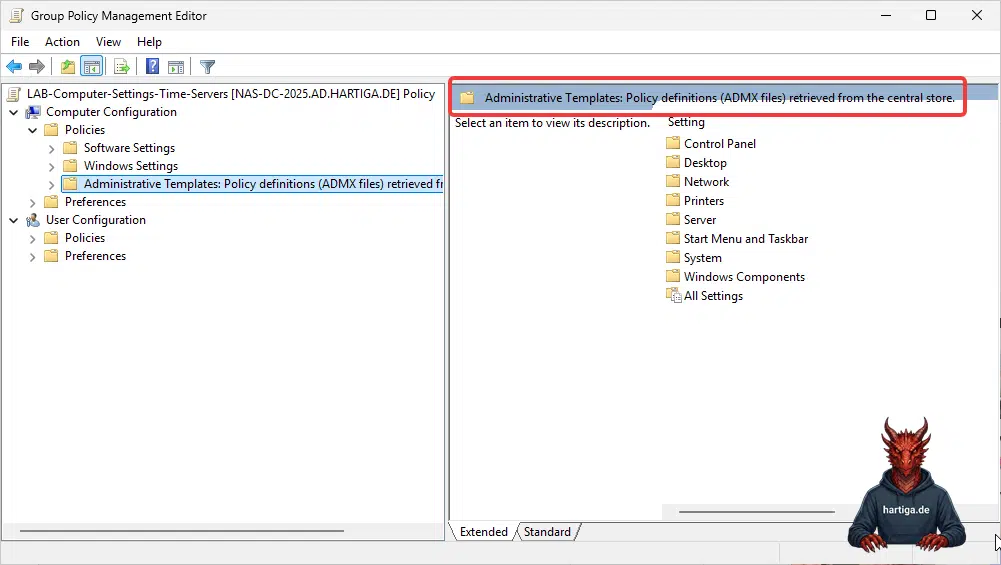
If the local machine message persists, verify that the folder names are spelled correctly without trailing spaces, and check that the replication cycles across your domain controllers have completed successfully.
Issues I had or have seen in support sessions
Common Mistakes
Setting up the Central Store is straightforward, but minor oversight can break policy editing or cause replication issues across your domain controllers.
- Copying templates from an outdated server: Seeding your Central Store from an unpatched base OS means newer Windows 11 or Server features will lose their settings text, showing up as unreadable registry keys in the editor.
- Wrong language folder name: The subfolder name must match the precise language pack of your management console (e.g.,
en-US,de-DE). If misspelled or omitted, the console will throw errors regarding missing string resources. My recommendation is to always only use en-Us. - My favorite is trailing spaces in folder names. Creating the folder named “PolicyDefinitions ” (with an accidental trailing space) will prevent Windows from recognizing the Central Store, causing it to fall back to the local drive silently.
- Hard to catch but your last resort. DFSR replication issues and delays over slow WAN links. If you drop a massive block of template updates into SYSVOL simultaneously, a backlog in Distributed File System Replication can cause a delay before other domain controllers can see the templates, leading to brief mismatches.
Conclusion
Building the Active Directory GPO Central Store is a foundational step for professional infrastructure management. It guarantees configuration consistency across the entire IT team, prevents policy corruption from mismatched software versions, and sets up the required environment for deploying advanced automations like Winget AutoUpdate.
If you have any questions please don’t hesitate to reach out to me on LinkedIn, Bluesky or check my newly created Adaptive Cloud community on Reddit.
LinkedIn: https://www.linkedin.com/in/andreas-hartig/
Bluesky: https://bsky.app/profile/hartiga.de
Adaptive Cloud community on Reddit: https://www.reddit.com/r/AdaptiveCloud/
My YouTube Channel: https://www.youtube.com/@hartiga
Important: With the current heat wave in Europe please make sure you stay hydrated and drink a lot of water!