Building a Dedicated Foundry Local Jump Server on Windows Server 2025 to avoid the outside where the asphalt is melting, helpdesk tickets are slowing down, and there is finally time for a summer project. Instead of turning your laptop into a frying pan with a local language model, we move the entire AI infrastructure to Windows Server 2025. Running permanently in the background are Microsoft Foundry Local, local language models, and MCP servers, built on the classic jump server principle.
The result is clear: the powerful server handles all AI workloads, while your laptop or tablet serves merely as a lightweight client. Inference runs around the clock, downloads do not break off, and longer agentic workflows can execute unattended.
Table of Contents
Introduction to dedicated Foundry Local Jump Server on Windows Server 2025
When I was asked by the German MVP community https://www.mvptreff.de/ to write an article for the summer event “Hitzefrei” i decided to combine the summer heat theme with sharing how I use the traditional jump server approach for my local LLM and MCP approach. This article explains the first steps and is available here in the original version German: Sommerbastelei im Serverkeller: Windows Server 2025, Foundry Local und das Jump-Server-Modell für deinen Urlaub. The text below is AI translated and manually reviewed by me.
For some more background check my Windows Server 2025 – Deploy your first AI Chatbot story.
Off from the heat thanks to a jump server: from sweaty developer to poolside admin
Many administrators evaluate local LLMs directly on their client machines. While that works, it introduces noticeable drawbacks: high CPU and memory loads, screaming cooling fans, short battery runtime, and interrupted tasks whenever the lid is closed.
We revive a proven IT pattern: the jump server model. The compute-intensive AI workloads, large model weights, and RAM usage shift entirely to Windows Server 2025 in a cool basement or as a VM running in Azure.
Your laptop stays quiet, cold, and easy on the battery while you access everything through a clean browser interface. If the sun is too bright, close the laptop lid, jump into the pool, and enjoy the downtime.
Because Microsoft Foundry Local resides right next to the infrastructure, local tooling can communicate via the Model Context Protocol (MCP) without fragile VPN setups or insecure tunnels out of hotel Wi-Fi networks.
Architecture for a dedicated Foundry Local Jump Server on Windows Server 2025
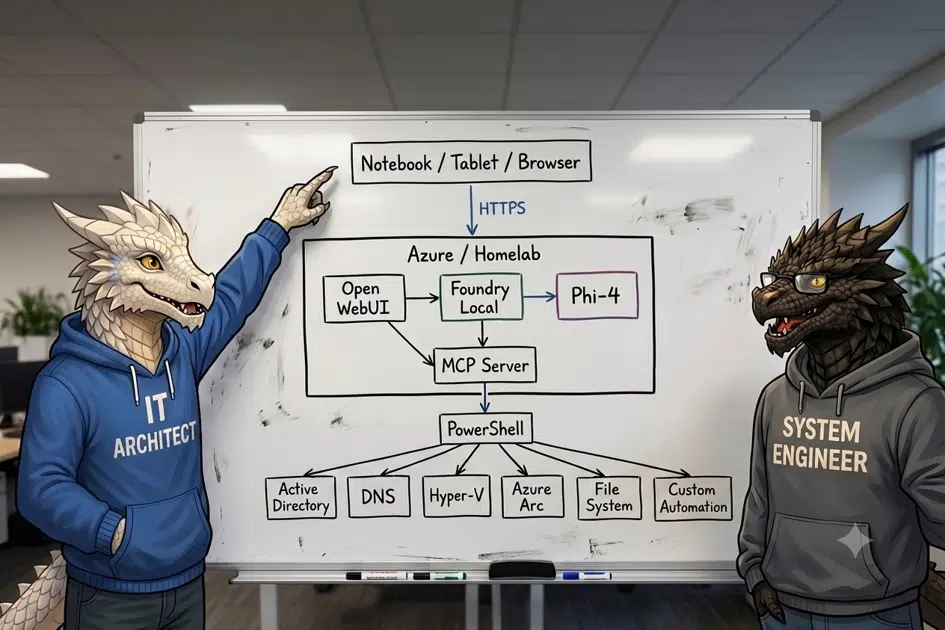
The target architecture cleanly separates the user interface, the language model, and the underlying infrastructure.
Clients connect via HTTPS from laptops, tablets, or mobile browsers to the Azure VM or homelab host. On the server side, Open WebUI interfaces with Foundry Local running Phi-4, as well as an MCP server that delegates commands through PowerShell into systems like Active Directory, DNS, Hyper-V, Azure Arc, the local file system, and custom automations.
Step-by-step installation guide to dedicated Foundry Local Jump Server on Windows Server 2025
To ensure a fast and clean deployment on Windows Server 2025, we use winget, the native Windows Package Manager. This keeps the host system tidy and avoids manual overhead with heavy Python environments or third-party installers.
Open an administrative PowerShell or Terminal session before running the commands below.
First, install Foundry Local via winget:
winget install Microsoft.FoundryLocalOnce installed, download and start the language model directly from the command line. For this scenario, we use Microsoft Phi-4:
foundry model run phi-4This command pulls the model weights in the background and opens an interactive console session for an immediate sanity test.
Tips & Tricks: Most documentation misses a critical setting regarding dynamic ports. By default, finding the active port requires parsing logs or config files. You can lock Foundry Local to a dedicated static port using this command:
foundry service set --port 30000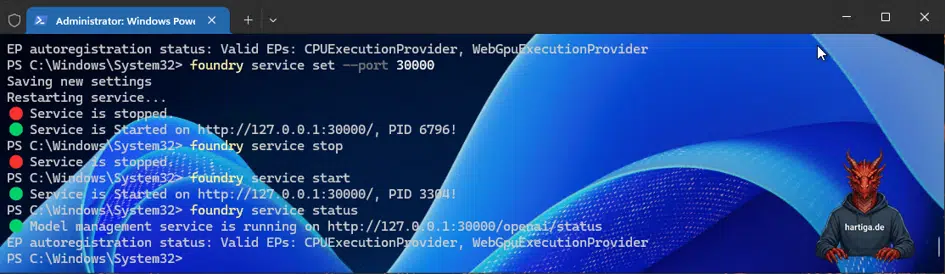
Restart or verify the service status immediately:
foundry service stop
foundry service start
foundry service status
lternatively, you can configure the port manually by editing port inside C:\Users\<YourUsername>\.foundry\config.json.
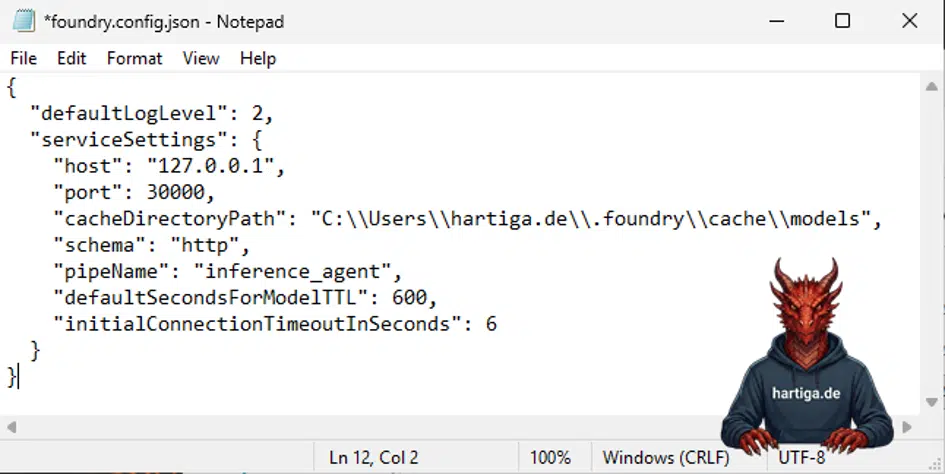
Connecting Open WebUI as user interface
Working inside a CLI console gets tedious quickly, so we attach Open WebUI as a web-based graphical interface. To keep the host lean without configuring Python or Conda toolchains manually, install the official Open WebUI Desktop package via winget:
winget install -e --id OpenWebUI.OpenWebUITo link Open WebUI to your running Foundry Local instance:
- Open the Open WebUI interface, navigate to the profile menu, open Admin Settings, and select Connections.
- Enable direct connections.
- Under personal settings for direct connections, add a new OpenAI-compatible endpoint.
- Enter
[http://127.0.0.1:30000/v1](http://127.0.0.1:30000/v1)as the URL, pointing to the port configured earlier. - Authentication can be left empty or set to any arbitrary string.
Save the settings. The local model is now ready to take queries directly in your browser.
Important: If you install Open WebUI on your laptop instead of running it host-side, remember to open the corresponding port in the Windows Defender Firewall and adjust your Azure Network Security Group (NSG) rules accordingly.
Additionally, register Foundry Local as a startup task via the Windows Task Scheduler under your dedicated service credentials so it stays online after reboots.
As an alternative UI option, check out FoundryLocalWebUI by Orin Thomas on GitHub at itopstalk/FoundryWebUI.
Bringing local MCP servers into play
The setup shows its true potential when the model stops being just a chat tool and starts executing real systems tasks using the Model Context Protocol (MCP). Because the runtime resides in a persistent, accessible server environment, integrating MCP servers becomes seamless.
Using frameworks like Semantic Kernel or the Microsoft Agent Framework, Foundry Local can pass context directly into management tools and scripts. If you supply the model with access to a curated PowerShell automation repository, Phi-4 can draft Active Directory queries, run them safely through the local MCP server, and return structured output directly inside your web console. The model acts as an intelligent operator for your Windows infrastructure while your physical client remains completely offline.
My recommendations for dedicated Foundry Local Jump Server on Windows Server 2025
Always bind the Foundry Local service to an explicit, fixed port via the service configuration so third-party frontends do not lose connection after service recycles.
When exposing the WebUI across network boundaries, avoid raw port openings to public networks; place the management traffic behind a reverse proxy with TLS or an authenticated tunnel.
Assign dedicated service credentials when running background inference workloads via Windows Task Scheduler to isolate permissions from interactive admin sessions.
Keep model storage drives on fast NVMe volumes to minimize cold-start loading times for local weights.
Conclusion
Windows Server 2025 paired with Foundry Local offers a discrete, reliable foundation for modern local AI setups. Reapplying the traditional jump server approach offloads heavy compute cycles and gives you the freedom to leverage AI tooling from ultra-lightweight clients without draining your battery or overheating your gear. Combined with MCP, the stack shifts from an experiment into a practical enterprise automation engine.
If you have any questions please don’t hesitate to reach out to me on LinkedIn, Bluesky or check my newly created Adaptive Cloud community on Reddit.
LinkedIn: https://www.linkedin.com/in/andreas-hartig/
Bluesky: https://bsky.app/profile/hartiga.de
Adaptive Cloud community on Reddit: https://www.reddit.com/r/AdaptiveCloud/
My YouTube Channel: https://www.youtube.com/@hartiga