Why do we need to Uninstall Azure Arc or Azure Arc Setup? Windows Server 2025 ships with the Azure Arc Setup feature baked in. You’ll notice a new tray icon and an optional-features entry even if you never intended to connect to Azure. For environments where cloud integration isn’t desired—or simply to reclaim resources—you can fully uninstall Azure Arc Setup and its agents.
Table of Contents
Historical Context – The Evolution of Windows Server
Since Windows Server 2022, Azure Arc has been shipped as an “Optional Component.” With update KB 5031364, it was quietly installed on all systems including a system tray icon.
This design has now been overhauled in Windows Server 2025:
- On Server 2022: AzureArcSetup was delivered as a graphical feature with an icon in the taskbar.
- On Server 2025: It’s integrated into Settings → System → Optional Features and can be removed cleanly
This shift is a response to community feedback as we all want Opt-In and not Opt-Out functionality added to our systems once we are “in production”.
Why Uninstall Azure Arc Setup?
Azure Arc enables powerful hybrid scenarios—Hotpatching, Azure Update Manager, centralized governance, hot-patch without reboot, and more. But not every server should phone home:
- Security policies may forbid outbound cloud connections
- Tray notifications and background services can clutter the UI
- You may simply not need Arc-based patching or monitoring
If your Windows Server 2025 instance is destined to stay on-premises and self-managed, uninstalling Azure Arc Setup returns it to a “cloud-free” state and eliminates concerns or upcoming discussions about your server being cloud connected.
IMPORTANT: Please be aware that this feature is called AzureArcSetup. It is important to mention that every Windows Server 2025 standard installation does not include an Azure Arc Connected Machine Agent or a cloud connectivity. This feature does only allow for quick onboarding and will download the current Azure Arc Connected Machine Agent when executed. There is no reason for Cloud security concerns even with this component installed.
Step-by-Step: Removing the Azure Arc Setup Feature
Prerequisites
- Ensure you have local administrative rights.
- If the server is already Arc-enabled, plan to delete its Azure resource after disconnection.
- Backup any custom scripts or monitoring configurations dependent on Azure Arc
Using the GUI to remove the Azure Arc Setup Feature
This is very straight forward and only requires three steps.
Open Settings → System → Optional Features.
Select AzureArcSetup, click Remove.

Reboot the server
Using PowerShell to uninstall Azure Arc Setup Feature
Please pay attention that this is the command to be used on Windows Server 2025.
DISM /online /Remove-Capability /CapabilityName:AzureArcSetup~~~~Uninstalling Azure Arc Setup from Windows Server 2022
The Setup has no impact on your machine until it is configured. If you want to, you can remove it by running the following PowerShell command.
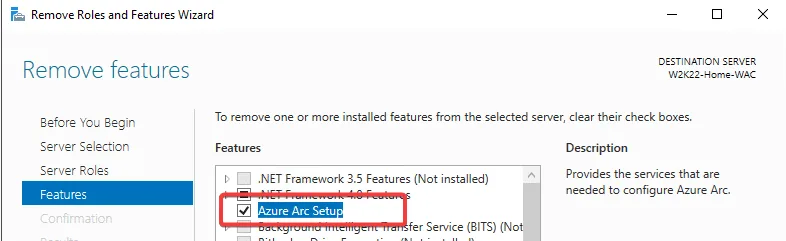
Disable-WindowsOptionalFeature -Online -FeatureName AzureArcSetupUninstalling using the GUI on the server is done using the Remove Roles and Features Wizard.
Uninstalling the Azure Connected Machine Agent
If you have been using the Azure Connected Machine Agent, the commands above will only uninstall the UI component, but not deconfigure and remove your Azure Connected Machine Agent. The process to remove the Azure Connected Machine Agent is a bit more complex.
A) Disconnect the Server from Azure Arc
azcmagent disconnect
# Use --force-local-only if the resource no longer exists in Azure
azcmagent disconnect --force-local-only
I use the optional –use-device-code for smoother auth if needed. Link: learn.microsoft.com
B) Uninstall the Agent via Control Panel or CLI
Open Control Panel → Programs → Uninstall a program.
- Find Azure Connected Machine Agent and uninstall it.
Command Line / Script:
# Identify and uninstall the product using its registry key:
Get-ItemProperty HKLM:\Software\Microsoft\Windows\CurrentVersion\Uninstall\* |
  Where DisplayName -eq "Azure Connected Machine Agent" |
  ForEach-Object { MsiExec.exe /x "$($_.PSChildName)" /qn }

# Alternatively, if you know the GUID:
msiexec.exe /x {GUID} /qn
This powershell will search for the Registry key shown below and give you the GUID.

I do use the use PowerShell scripts by Wim Matthyssen to clean up the system completely, including folders and registry entries (wmatthyssen.com).
Remove the Folders and Registry
Even after uninstallation, some remnants are left behind:
C:\Program Files\AzureConnectedMachineAgent\C:\ProgramData\AzureConnectedMachineAgent\- Potential plugin folders like
C:\Packages\Plugins\…orC:\ProgramData\GuestConfig\
Recommended steps:
- Stop all agent-related services and background processes.
- Manually delete leftover folders.
- Clean registry entries (e.g.,
Uninstallkeys) by search for the GUID used earlier or “Azure Connected Machine Agent” - Reboot the machine to ensure a clean state.
The manual cleanup process is quite complex, this is why i recommend to use the scripts by Wim Matthyssen.
Clean Up Azure Resources and Extensions
After removing the local agent, finish cleanup in Azure:
- Delete Arc extensions
UseRemove‑AzConnectedMachineExtensionto remove leftover extensions like AzureMonitorWindowsAgent (learn.microsoft.com). - Delete the Azure resource itself
If the resource appears offline in Azure, remove it from the resource group manually.
More details on how to uninstall all components can be found here on learn.microsoft.com
✅ Final Checklist
| Step | Description |
|---|---|
| 1 | Remove the GUI feature AzureArcSetup |
| 2 | Disconnect the server using azcmagent disconnect |
| 3 | Uninstall the agent via Control Panel or script |
| 4 | Manually clean up files and registry |
| 5 | Remove extensions and delete the Azure resource |
This ensures your Windows Server 2025 system is clean and free of Azure Arc components.
Post-Removal Considerations
- Hotpatch & Azure Update Manager
Windows Server 2025’s No-Reboot Hotpatch requires Azure Arc and Virtualization-based Security (VBS). Once Arc is removed, Hotpatch and Azure Update Manager integrations are no longer available. Learn more in the Hotpatch for Azure Arc–enabled servers guide. - Security & Monitoring
Any Azure Monitor or Log Analytics extensions deployed via Arc need manual cleanup in Azure. Delete stale Data Collection Rule associations and VM extensions in the portal. - Future Updates
As Microsoft evolves Server 2025, Arc agents may receive new capabilities. By removing the inbox setup, you won’t automatically get those updates—plan accordingly if you ever decide to re-onboard.
Conclusion
Uninstalling Azure Arc on Windows Server 2025 takes just a handful of steps. By disconnecting first, then cleaning up agents, capabilities, files and registry entries, you restore a fully on-premises server footprint.
I’d love to hear how your cleanup went and why you started the process. Message me via LinkedIn, Mastodon, Bluesky or join the Adaptive Cloud Community on Reddit. Let’s keep combining the best of the past with what works today. Top get started with Windows Server 2025 check my guide here.