DNS issues don’t always show up as clear outages. Often they show up as annoying browser behaviour like “random delays on first page load”, “sometimes it works, sometimes it spins”, long sign-in times for SaaS apps or just weird behavior that disappears when someone retries.
Table of Contents
My preferred approach: a simple GUI sanity check
Yes, we can do Resolve-DnsName, packet captures, ETW traces, and deep dives. But when the question is “Are my local DNS servers performing like they should?”, I like a quick, visual baseline first.
That’s why I use GRC DNS Benchmark: a small tool that benchmarks your configured DNS servers and compares them with other resolvers in terms of performance and reliability.
Download (official page): https://www.grc.com/dns/benchmark.htm
What you’re actually testing
When you benchmark DNS, you’re not just testing “the DNS server”.
You’re testing the chain:
- Client behavior (client cache, search suffixes, retry logic)
- Your local DNS server (cache hit rate, recursion load, CPU/memory, timeouts)
- Forwarders / upstream resolvers
- Network path (VPN, proxy, packet loss, asymmetric routing, firewall inspection)
So don’t run one test once and declare victory. Run it where and when it matters.
How I run the test (practical workflow)
Create a drawing of your DNS connectivity
Have you ever really confirmed how your DNS chain is configured? I always start drawing the DNS connectivity from my test client through the device. Here is my chain.
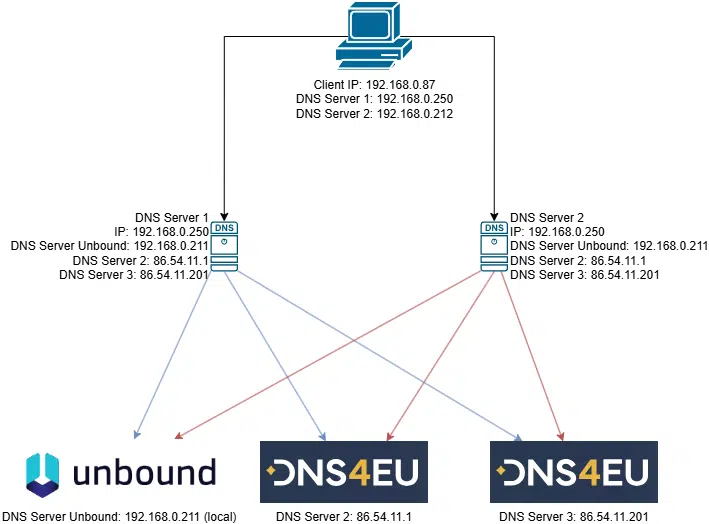
I am very happy with my initial review as I found the workflow to be as expected. My client talks to my two local DNS Server (currently running PiHole). The local DNS Server are communicating with my local Unbound DNS as the first option and the external DNS4EU servers as a backup.
Pick the right test machine for Windows DNS Performance Testing
Use a client that represents your users:
- same site / VLAN
- no weird VPN split-tunnel situation (unless that’s the scenario you’re troubleshooting)
- no local “DNS hacks” (hardcoded DNS servers, custom adapters, etc.)
Run GRC DNS Benchmark for Windows DNS Performance Testing
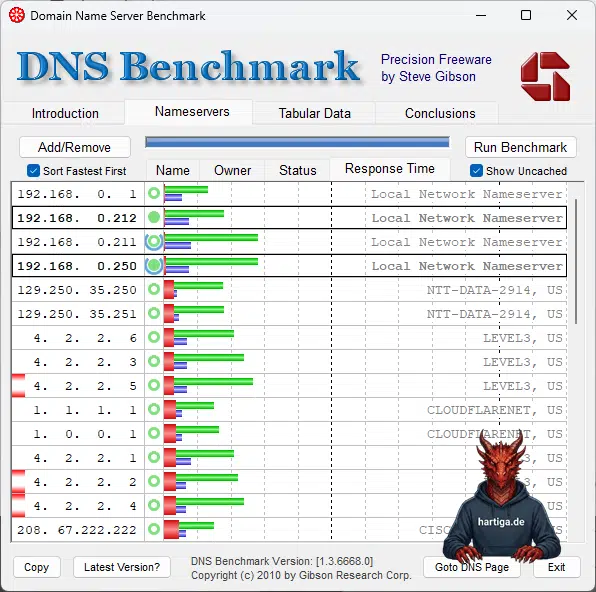
The tool typically detects the DNS servers your system is currently configured to use, then benchmarks them against a list of known public resolvers. Here is my initial result.
Add your relevant resolvers
Make sure you include:
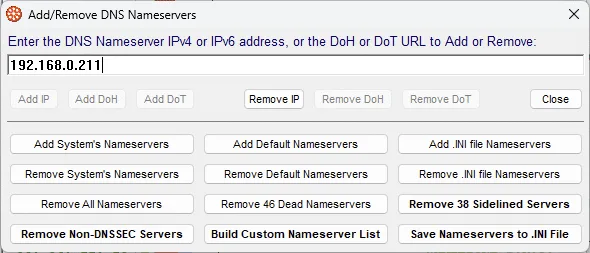
- your local DNS servers (DCs or dedicated resolvers) in my scenario these are 192.168.0.1 (my local Unifi UDM Pro SE), my two local DNS Servers with malware and ad blocking abilities (192.168.0.212, 192.168.0.250) and my local unbound docker container (192.168.0.211).
- any forwarders you rely on (DNS4EU – 86.54.11.1 & 86.54.11.201)
- one or two “known public” resolvers for comparison (as reference, not as the goal)
Execute the benchmark
Run the test and focus on two outcomes:
- Latency (fast answers)
- Reliability (no timeouts / failures)
Reliability matters more than shaving 5ms off a lookup. A “fast” resolver that times out under load is worse than a slightly slower one that is consistent.
Checking the Results for Windows DNS Performance
Cached vs uncached

If your local DNS is doing its job (and users repeatedly hit the same SaaS domains), cached lookups should be fast and stable. DNS caching is a core part of how DNS is supposed to work. To check the differrent results just check and uncheck the box “Show uncached”.
“Local DNS slower than public DNS”
This can happen — and it’s usually a sign of upstream/forwarder problems, not that “public DNS is magically better”.
Remember: a forwarder can build a large cache because all external queries go through it, which improves response times and reduces external traffic. If your forwarder is misconfigured, overloaded, or timing out, your clients will pay for it.
Important: If you see this behaviour you should really look into your DNS Nameserver CPU / Memory / configuration and start troubleshooting.
Timeouts / failures during Windows DNS Performance Testing
This is the big red flag.
If you see instability, don’t guess. Start your investigation.
- Enable enhanced DNS logging/diagnostics on Windows Server DNS.
- Check whether your issue correlates with dual-stack forwarding behavior (IPv4/IPv6 edge cases exist, and cache-clearing “fixes” can be a tell).
What to do when your local DNS is “slow”
Here’s the honest truth: DNS slowness is rarely solved by one magic setting. But the fixes usually fall into a few buckets.
Bucket 1: Fix the forwarding path
- Review your forwarders and their reach ability
- Ensure your forwarders are stable (packet loss hurts DNS disproportionately)
- Avoid building “forwarder chains” with too many hops
Forwarding is a normal and recommended pattern — but only if it’s engineered properly.
Bucket 2: Stop fighting the DNS client cache
Windows has client-side DNS caching and Microsoft explicitly recommends not disabling it.
If someone disabled it “for troubleshooting” and it became permanent: congratulations, you’ve created unnecessary load and latency.
Bucket 3: Observe the DNS server like a real service
If DNS is critical, treat it like Tier-0-adjacent infrastructure (because it often is).
- Turn on logging/diagnostics when troubleshooting
- Use operational tooling (
dnscmd) for inspection and automation
The “don’t over engineer” rule
DNS is an area where “over engineered and complex” designs age badly.
Keep it boring:
- clear ownership (who operates DNS?)
- clear architecture (who resolves external names, who hosts internal zones?)
- repeatable changes
- measurable outcomes (before/after tests)
Important: If you can’t explain your DNS resolution path on a whiteboard in 60 seconds, you don’t control it. The 60 second rule no longer applies, when you deal with split DNS and Azure DNS Forwarders and all the complexity around that.
Homelab / Adaptive Cloud Windows DNS Performance Testing
In homelabs I see the same pattern, just faster:
- Pi-hole / Technitium / Unbound / router DNS forwarding
- split DNS for internal zones
- VPN clients bringing their own resolver behavior
The tool is still useful there — because the questions are always the same:
- Have you designed it correctly from the local DNS zone names and your forwarding? Check my guide on “Always choose the right DNS / Active Directory domain name for your 2024 home lab” for guidance
- Are you self hosting for the right reason and with the right design? Luckily I have a guide on that too: Self Host DNS for Security and Privacy
- And finally check your DNS fundamental design and start my 3 episodes long guide “Homelab – Build a robust DNS foundation – Part 1 using Unbound on Windows”
Support the developers and buy version 2 of DNS Performance
The new version of DNS Performance comes with a lot of features. It adds IPv6 support, secure DNS communication and you can automatically let it repeat the test 50 or 200 times. What made me immediately buy it was the 9,95$ life time option with no hazzle but just good old license keys.
Good and start the developer here today. Purchase Link
Conclusion on Windows DNS Performance Testing
If external websites feel slow, don’t start with blame. Start with your initial packet loss and latency first, but then immediatly look into DNS.
Here is what to remember:
- Keep DNS boring, repeatable, and measurable.
- Benchmark from a representative client
- Compare your local DNS vs upstream behavior
- Prioritize reliability over micro-optimizing latency
- Instrument DNS properly when you see failures (logs + diagnostics)
If you have any questions please don’t hesitate to reach out to me on LinkedIn, Bluesky or check my newly created Adaptive Cloud community on Reddit.
LinkedIn: https://www.linkedin.com/in/andreas-hartig/
Bluesky: https://bsky.app/profile/hartiga.de
Adaptive Cloud community on Reddit: https://www.reddit.com/r/AdaptiveCloud/
Sources and more to read
- GRC – DNS Nameserver Performance Benchmark (DNS Benchmark) (tool download + overview).
- GRC – DNS Benchmark Features (how it benchmarks configured resolvers + comparison set).
- Microsoft Learn – Enable DNS Logging and Diagnostics in Windows Server (enhanced logging, auditing, analytic events for DNS Server).
- Microsoft Learn –
dnscmdcommand (DNS server administration CLI for automation and troubleshooting). - Microsoft Troubleshooting Guidance – Troubleshoot DNS (Windows Server) (explicit recommendation: don’t disable DNS client-side caching; unsupported if disabled).
- Microsoft Troubleshooting – Best practices for DNS client settings in Windows Server (DNS client configuration guidance, foundational best practices).