I view a lot of log files—probably more than I’d like to admit. Whether it’s troubleshooting a hybrid infrastructure issue or debugging a cloud deployment, I always look for the functionality to tail for log files live in a GUI on Windows.
Table of Contents
Introduction to tail for log files
Under Linux, this is trivial via the classic tail command. Under Windows, however, we’ve historically had to be a bit more creative.
In 2026, while I still value the traditional tools that have served us well for decades, the sheer size and speed of modern logging require us to look at more powerful, modern alternatives. Here is my no-nonsense breakdown of the best options available today.
The Modern Powerhouse: Klogg
If you are looking for the absolute best performance in 2026, Klogg is the tool you need.
I used to rely on older tools, but Klogg has effectively replaced them for heavy lifting. It is a fork of the older “glogg” and is designed to be incredibly fast. It reads files directly from the disk without loading them entirely into memory, which means you can throw a multi-gigabyte log file at it, and it opens instantly.
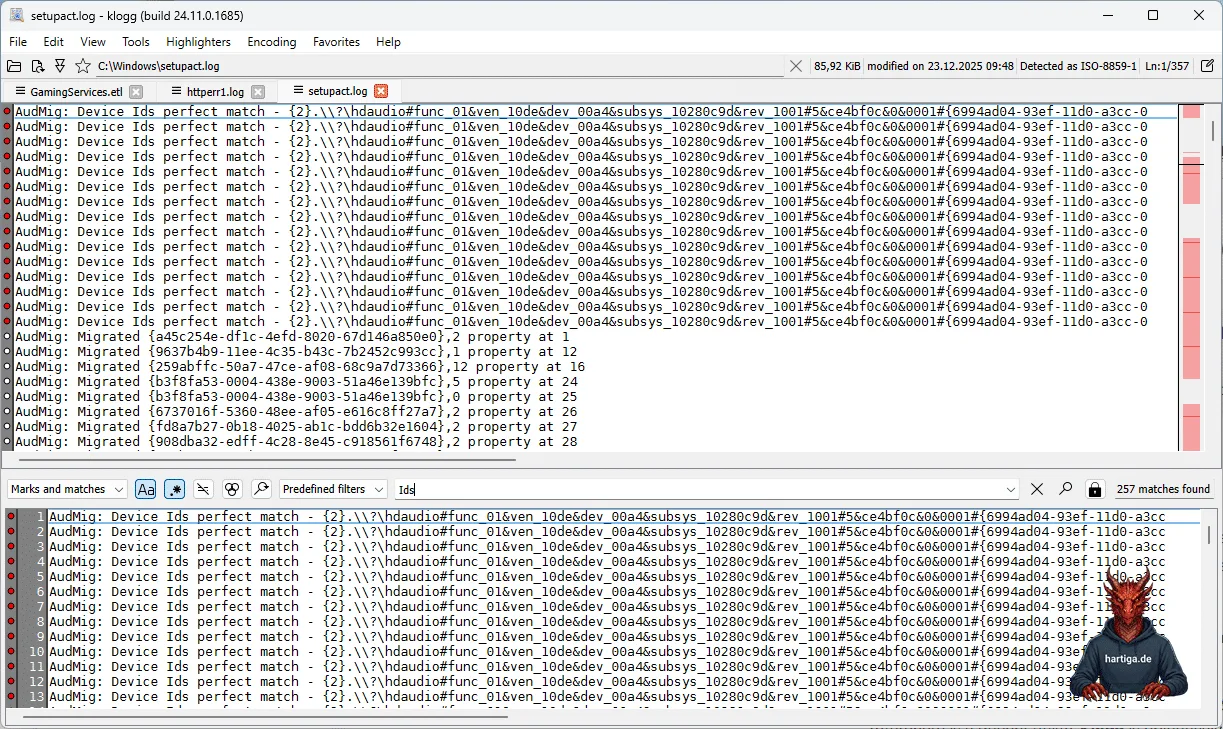
Why it’s my top pick for 2026:
- Performance: It uses multi-threading and SIMD instructions to grep through logs faster than anything else I’ve used.
- Real-time Monitoring: It watches for file changes on disk and reloads them automatically, giving you that perfect “tail -f” experience in a GUI.
- Search & Filter: You can search using complex Regular Expressions (RegEx), and it displays the filtered lines in a separate pane while keeping the context of the main file visible.
It’s open-source, cross-platform, and frankly, it just works. You can grab it here: https://klogg.filimonov.dev/
The best way to get started with Klogg is Winget.
winget install -e --id variar.kloggThe Classic: CMTrace
I can’t write this article without mentioning CMTrace. This has been my faithful companion for years. Originally part of the SCCM (System Center Configuration Manager) toolkit, it remains one of the most reliable log viewers for Windows.
While Klogg wins on raw speed for massive files, CMTrace is still unbeatable for its highlighting and formatting of Microsoft-centric logs. It’s available in every Configuration Manager installation, but you can also extract it from the official evaluation download if you don’t have an endpoint manager setup handy.
It’s the traditional choice that still holds up for quick, standard Windows log analysis.
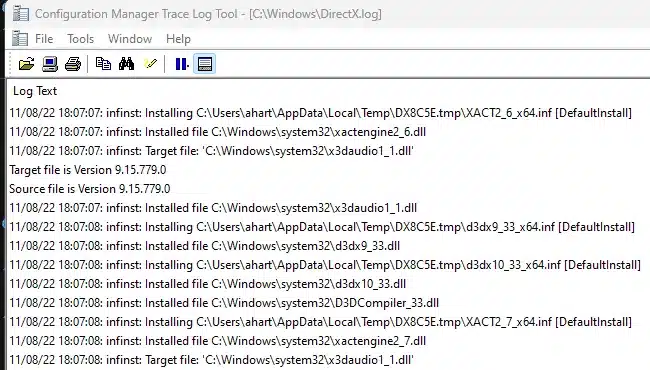
The Veterans: BareTail & LogExpert
For a long time, BareTail was the professional solution I recommended for extensive functions. It’s still a solid piece of software if you have a license or prefer its specific interface, but it hasn’t seen the same aggressive modernization as Klogg.
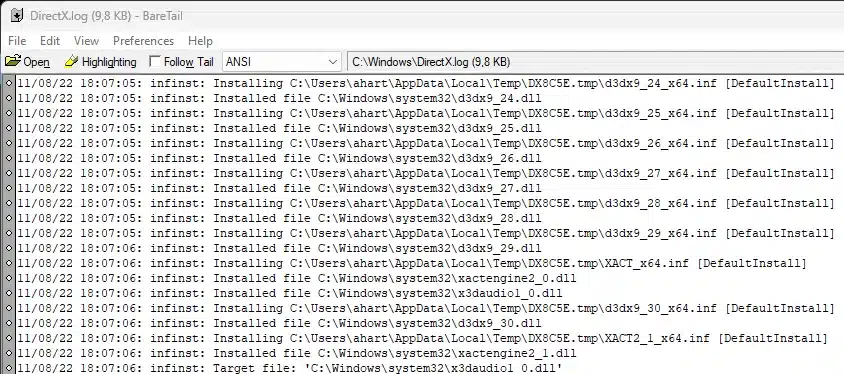
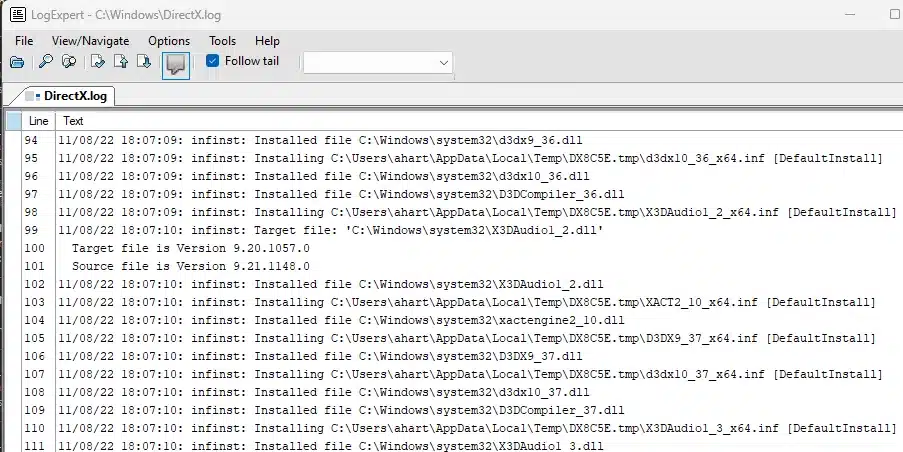
LogExpert is another alternative that many of us used for years. It’s still available on GitHub, but compared to the modern rendering engines we have now, it can feel a bit heavy on memory. I mention them because they are part of our history and still get the job done, but if you are starting fresh today, look at Klogg first.
The Windows native option: PowerShell
Sometimes you are on a server where you cannot install tools, or you just want to do things the “native” way. I am a huge proponent of knowing your basics.
I use the PowerShell command Get-Content for this. It does exactly what it says: it gets the content of the file. But the magic happens when you add the -Tail and -Wait parameters.
Here is the command to get the last 10 lines of a log:
Get-Content .\application.log -Tail 10To get the true “Live Tail” experience (equivalent to tail -f in Linux), you use the -Wait flag. This keeps the cursor at the end of the file and prints new lines as they are written:
Get-Content .\application.log -Tail 10 -WaitImportant: You don’t always can use or need a GUI tool if you know your powershell commands. Keep learning your daily dose of PowerShell and check out Harm’s blog here.
The Hidden Gem: DisplayTool 3.0
For those who want something incredibly lightweight and portable as a tail for log files solution, DisplayTool is a fantastic “Hidden Gem” that I’ve been keeping an eye on.
In my previous writings, I mentioned version 2.2, but the tool has since been updated to Version 3.0. The developer has kept what made it great—it’s still a tiny executable (only ~160KB!) that requires no installation—but they have added a critical feature for pros: Regular Expression (Regex) support.
Why it’s worth a look:
- Portability: It’s a single
.exefile. Perfect for USB sticks or quick troubleshooting on servers where you can’t install software. - Resilience: It’s designed to be robust. If you reboot a server or lose a network connection, DisplayTool automatically resumes the “tail” once the file is accessible again.
- The 3.0 Update: The jump from 2.2 to 3.0 finally brings full Regex filtering, making it a serious contender for more complex log analysis without the bloat.
It’s free (even for professional use), and you can find it here: http://display-tool.com/
Summary on Tail for log files
For 2026, my toolkit has evolved. I still keep CMTrace on my USB drive (or cloud storage) for specific Microsoft logs, but installing Klogg using Winget has become my daily driver for everything else due to its speed and modern architecture, while DisplayTool 3.0 is my go-to portable solution.
And, of course, PowerShell remains the ultimate fallback when you need to be effective immediately without dependencies.
Check my original version here, if you want to know something about what tools i have been using to Tail for log files in the past.
If you have any questions please don’t hesitate to reach out to me on LinkedIn, Bluesky or check my newly created Adaptive Cloud community on Reddit.
LinkedIn: https://www.linkedin.com/in/andreas-hartig/
Bluesky: https://bsky.app/profile/hartiga.de
Adaptive Cloud community on Reddit: https://www.reddit.com/r/AdaptiveCloud/