Windows Terminal and Oh My Posh are a great combination! In the past we looked here at how to utilize the Windows Terminal in a personalized way to improve usability and our performance. While the built-in customization options are a good starting point, there is an even better way today to turn your terminal from a simple text interface into a more powerful and personalized tool using Oh My Posh.
Integrating Oh My Posh into your setup allows you to move beyond basic aesthetics and add functional support. This includes features like real-time Git status, path indicators, and some system performance information directly in your prompt.
Table of Contents
Why we want to have this functional personalization
A reality of IT operations is that we spend hours in the shell. If your prompt doesn’t tell you which branch you are on or if a previous command failed, you are working harder than you need to. Oh My Posh is a custom prompt engine for any shell that provides:
- Cross-shell support so your prompt can look consistent across PowerShell, Bash, and other supported shells.
- Contextual awareness to instantly see your active Azure subscription, Kubernetes context, or Git status.
- Visual clarity by using Nerd Fonts to provide clear graphical indicators for folders, languages, and tools.
Important: When you spent a lot of time with something you want to improve or invest into it becoming better.
What information appears the Windows Terminal with Oh My Posh
One of the biggest benefits of Oh My Posh is that it transforms your prompt from a static line into a rich, informative interface. Depending on the theme and configuration you choose, your prompt can display useful information at a glance, helping you work more efficiently.
By surfacing this context directly in your prompt, you no longer need to run extra commands to check your environment. Every detail you need for development or IT operations is visible before you even type your next command. Typical elements include:
- Git status to see the current branch, staged or unstaged changes, and whether your repository is ahead or behind.
- Command execution information such as the time taken for the last command or the exit code if it failed.
- Environment context for your active Azure subscription, Kubernetes context, or other cloud profiles.
- Programming environments that show active Python virtual environments, Node.js versions, or other language runtimes.
- Path indicators and icons to visually see the current folder structure with icons provided by Nerd Fonts, making it easier to navigate.
- Optional system info like battery percentage, CPU load, or other lightweight indicators depending on your theme.
Installation and Integration of Windows Terminal and Oh My Posh
My preferred way and the most proactive way to install Oh My Posh today is via winget. Open your Terminal and run:
winget install JanDeDobbeleer.OhMyPosh -s winget
The configuration requires a few steps:
#Create a new powershell profile - if you have one, ignore this
New-Item -Path $PROFILE -Type File -Force
notepad $PROFILE
Copy the following text into your PowerShell profile config file that will open in notepad
oh-my-posh init pwsh --config "jandedobbeleer" | Invoke-ExpressionSave the file and reload the profile using the following command
. $PROFILEYou will most likely see “squares”, so lets install a font and configure it in your terminal.
oh-my-posh font install meslo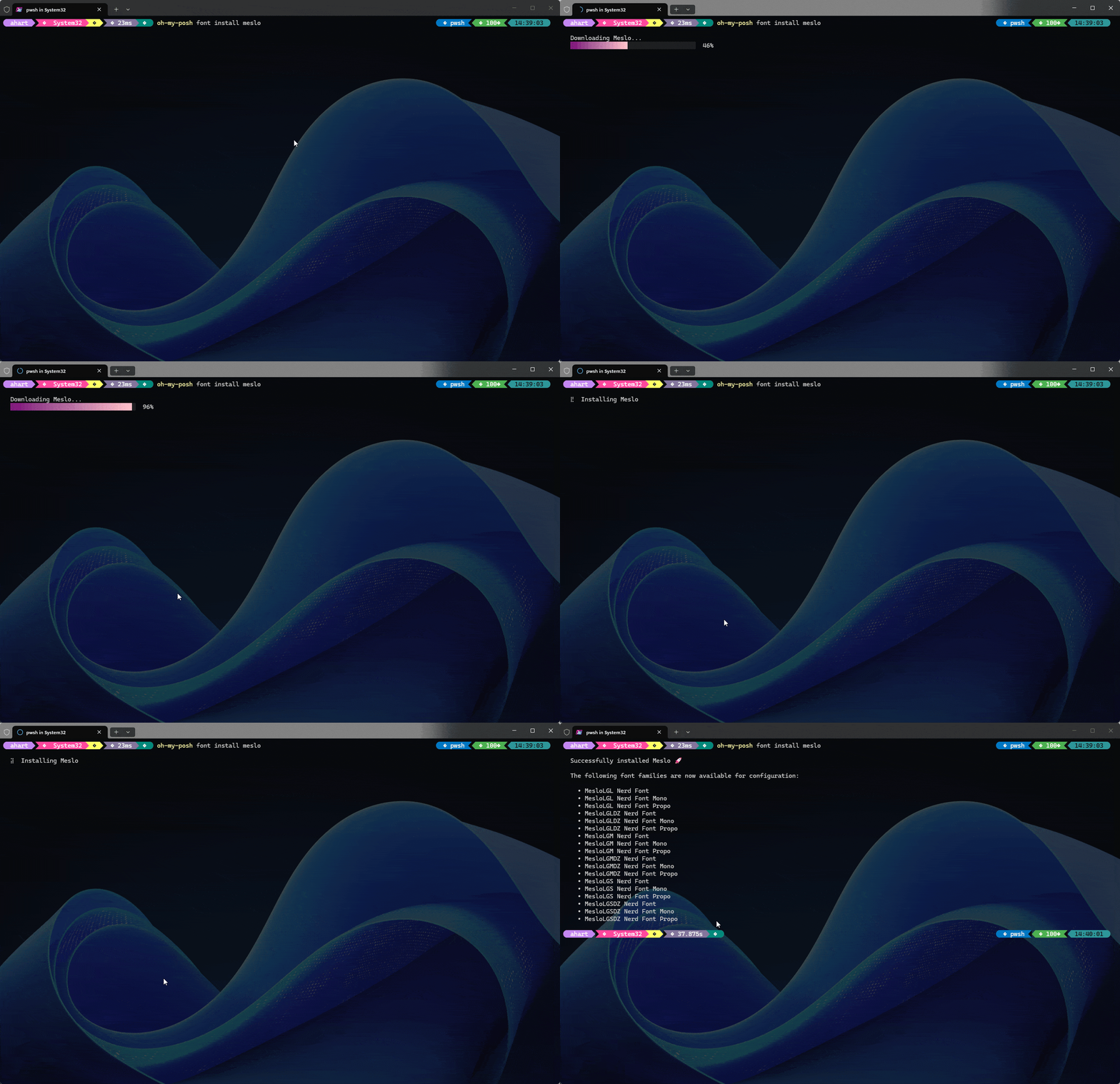
Close and restart your terminal. For each of your PowerShell sessions / profiles configure one of the font options. My prefered one is MesloLGM Nerd Font.

Once installed and configured, you can explore hundreds of themes. I personally use the default theme as a clean, professional look that doesn’t distract from the task at hand. To choose from different themes try the documentation here.
To make your customization permanent, you need to update your PowerShell profile. Run
oh-my-posh init pwsh --config "$env:POSH_THEMES_PATH\jandedobbeleer.omp.json" | Invoke-ExpressionConclusion on Windows Terminal and Oh My Posh
We value the past because it taught us the power of the command line, but I totally embrace the modern way because it makes us more efficient. By adding Oh My Posh to your terminal setup, you aren’t just beautifying a tool. You are building a more responsive and informative interface for your daily operations.
Thanks to Matthias Braun for recommending this additional customization and blog article in my last LinkedIn article on using the Windows Terminal. Check out his blog located here for Azure automation and more content.
If you have any questions please don’t hesitate to reach out to me on LinkedIn, Bluesky or check my newly created Adaptive Cloud community on Reddit.
LinkedIn: https://www.linkedin.com/in/andreas-hartig/ Bluesky: https://bsky.app/profile/hartiga.de Adaptive Cloud community on Reddit: https://www.reddit.com/r/AdaptiveCloud/