Microsoft released the Windows Server 2025 and made it officially available on the 1st of November 2025. With the latest changes in the server and datacenter Virtualization market, i wanted to take a more detailed look at Hyper-V again. Let’s get started!
I am fond of simple solutions. In this introduction part 1 will use my low-cost development environment. This should allow nearly everyone will be able to test and learn in their own lab. To get ready, there are a few simple steps.
Table of Contents
Whats new with Windows Server 2025
There is a lot of new things available with Windows Server 2025. Check the full list here.
I would highly recommend to check the updated on the newly available Azure Arc GUI, the finally updated Active Directory, details about the improved NVMe performance, a large amount of updates to SMB including the whole new and fancy QUIC feature and the mandatory change to Windows Local Administrator Password Solution (LAPS).
Prepare for the installation
- Check Prerequisites Review Windows Server 2025 release notes and system requirements.
- Register, then download and install. (Note: This evaluation edition expires in 180 days.)
- Personally I will re-use environment I have been using in the past to operate my Proxmox test lab. I highly recommend to take a look at the AFB Shop to get some refurbished equipment. I focus on small and tiny desktop equipment with just enough power to host my test environment. Good examples are available in the mini PC category.
- Go to the Eval site and download your version of Windows Server 2025 for free at Microsoft.

3. Create a bootable USB Device to copy the Windows Server 2025 ISO. I use Rufus to create ISO files. It is not using any installer. For me it has been working reliable over a long period of time.
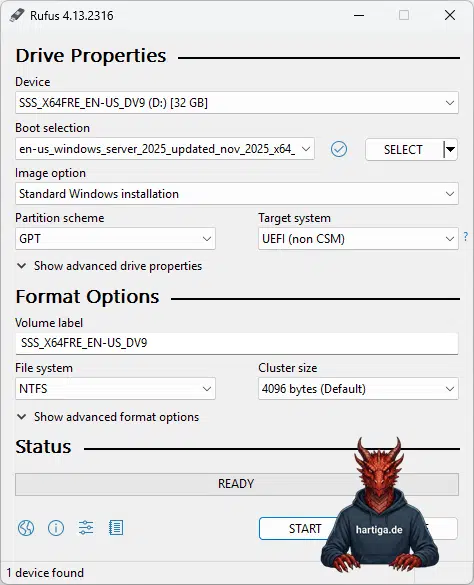
I do change the default settings of Rufus. Those are based for Windows 11 use cases, like disabling requirements and the use of online accounts.

Finally start the installation of your server
5. Start the installation of Server 2025 and if you have registered and downloaded the version using the link above, it will expire in 180 days
6. Enjoy Server 2025, and your journey to learn more about IT architecture will continue in Part 2 of this document, when we enable Hyper-V and start looking at how many VMs we want to test the new features.
My minimum spec used for testing is a Fujitsu ESPRIMO Q556/2 | Intel i5- 7500T | 32GB DDR4 | 1024GB SSD. These systems are currently available for very cheap, as the Intel 7th generation will not officially support Windows 11. Companies are replacing these and the demand for refurbished devices is going down. If you are especially interested on how to upgrade that hardware, than take a look here (German version) or here (English version).
Obviously you do care about Windows Server. Before we continue you might be be interested in a story about technical debt.
Check the next steps of your journey to a Server 2025 HomeLab
Windows Server 2025 – Part 2 (Hyper-V)
Windows Server 2025 – Part 3 (Azure Arc)
Windows Server 2025 – Part 4 (Services Removed)
Windows Server 2025 – Part 5 (Active Directory)
Windows Server 2025 – Part 6 (Active Directory Design)
Windows Server 2025 – Part 7 (Active Directory Hardening)
and more to come on my blog. For regular updates subscribe to my newsletter here.
Additional Resources
- Getting Started Guide | Get started with Windows Server 2025
- Community | Microsoft Tech Community: Windows Server
- Microsoft Docs | Windows Server technical documentation
- Microsoft Certified | Hybrid Administrator Certification
- Windows Insider | Get news and previews – Windows Insider Program
- Windows Server Installation guidance / M365 Support on Windows Server by Karl Wester-Ebbinghaus
This is an updated version of my preview article. The preview article is now located here.