Let’s be honest: There is nothing more frustrating than deploying a fresh Windows Server 2025 instance, trying to ping it to verify connectivity, and getting a “Request Timed Out.” We want to Allow Ping (ICMP) on Windows Server 2025!
Table of Contents
The Story to Allow Ping on Windows Server 2025
In the past, many (hopefully not you) administrators would simply disable the Windows Firewall entirely to “fix” this. That was the “traditional” quick fix. It worked, but it was reckless. Others would manually enable the rule on every single server. That’s not scalable.
Today, we need a modern, automated, and secure approach. We need observability for our monitoring systems, but we cannot afford to leave our network wide open. Here is how to configure a Group Policy Object (GPO) to allow ICMP Echo (Ping) on Windows Server 2025, and more importantly, how to do it securely.
I want a single GPO that applies to all our Windows Server 2025 machines (or a specific subset) that allows them to reply to Ping requests.
If you haven’t used Group Policy Objects (GPOs) that much, please start reading my initial blog posts “Group Policies and Group Policies Preferences” and “Automation using Group Policy – Background” to understand the foundation.
Configure the Windows Firewall – Group Policy Management Console (GPMC)
The easy way for your homelab to Allow Ping on Windows Server 2025
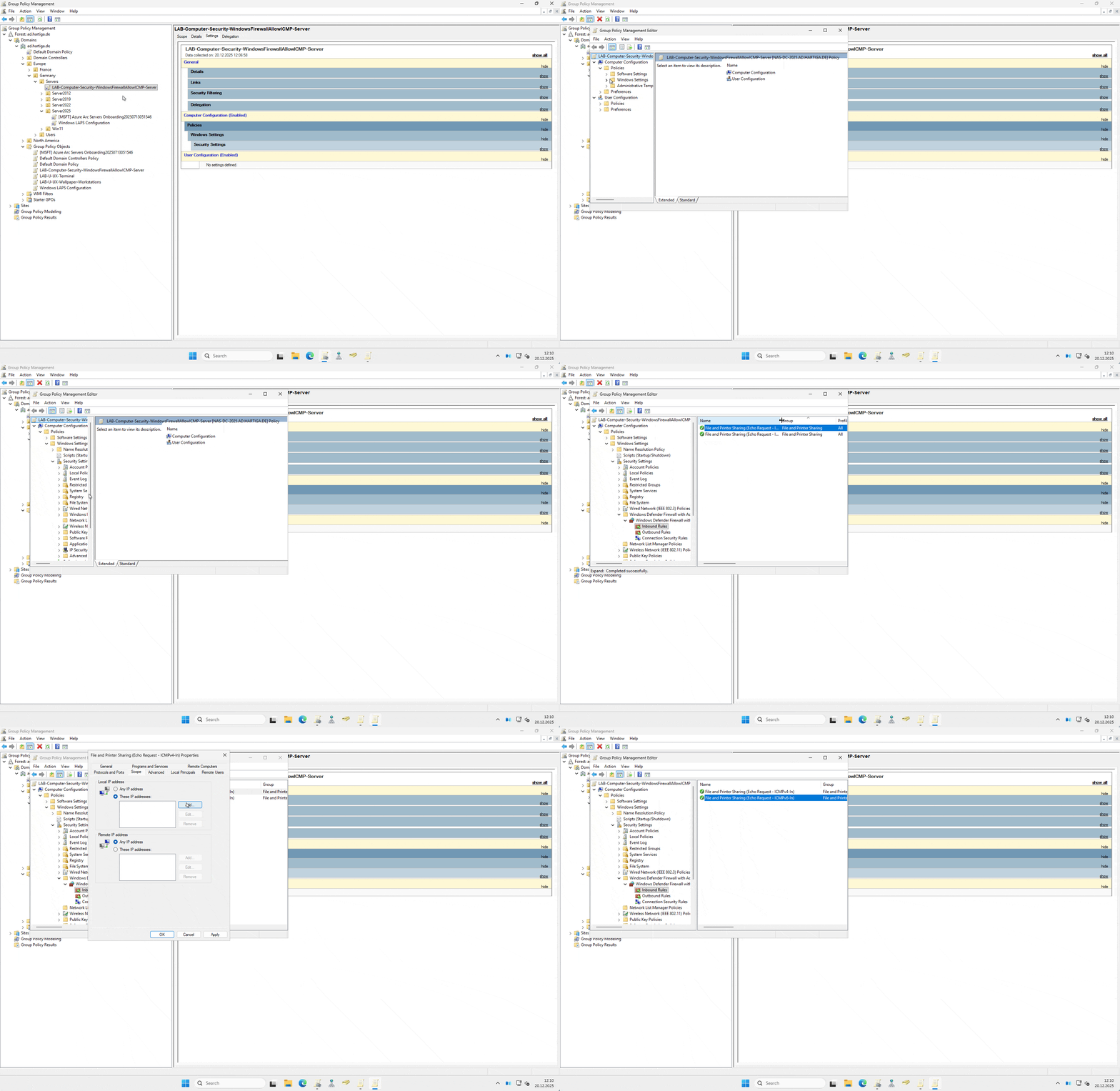
Create the GPO: Create a new GPO named SEC_Server_AllowPing (or a naming convention that actually makes sense in your environment) and link it to your Server OU. If we use the naming convention explained here, it would be something like this:
LAB-Computer-Security-WindowsFirewallAllowICMP-ServerEdit the GPO: Navigate to the following path: Computer Configuration > Policies > Windows Settings > Security Settings > Windows Defender Firewall with Advanced Security > Windows Defender Firewall with Advanced Security – LDAP… > Inbound Rules
New Rule: Right-click Inbound Rules and select New Rule.
Rule Type: Select Predefined and choose File and Printer Sharing from the dropdown. Click Next.
Select the Rule: You will see a list of rules. You do not need all of them. Uncheck everything except:
- File and Printer Sharing (Echo Request – ICMPv4-In)
- (Optional: Select ICMPv6-In if you are actually using IPv6, which you should be).
Action: Select Allow the connection.

The modern way – “Zero Trust”
If you want to do Allow Ping on Windows Server 2025 in a better and more secure way, you need to restrict who can actually ping your server. In a Zero Trust world, your servers shouldn’t be responding to pings from a random workstation or IP Range.
Let’s configure a Subnet Range to allow Admin Jump Hosts. For me this is the subnet 192.168.0.0/24.
- Navigate to the following path: Computer Configuration > Policies > Windows Settings > Security Settings > Windows Defender Firewall with Advanced Security > Windows Defender Firewall with Advanced Security – LDAP… > Inbound Rules
- After creating the rule, double-click it in the GPO editor to open Properties.
- Go to the Scope tab.
- Under Remote IP address, change “Any IP address” to These IP addresses.
- Add only the subnets or specific IPs of your:
- Management Network (Admin Jump Hosts)
- Monitoring System (Nagios, PRTG, Zabbix, etc.)
This values the utility of the “ping” (a tool from the past that is still vital) but applies the modern security posture required for 2025.
One command like this or some patience
gpupdate /forceand your firewall now allows this very specific traffic. Based on this configuration and the OU assignment to all Windows Servers in my homelab AD, this is now true for all servers that I install and move to the standard OUs.
You can also run the following powershell command to verify the setting to Allow Ping on Windows Server 2025.
Get-NetFirewallRule -DisplayName "File and Printer Sharing (Echo Request - ICMPv4-In)" | Select-Object Name, Enabled, Profile, Direction, Action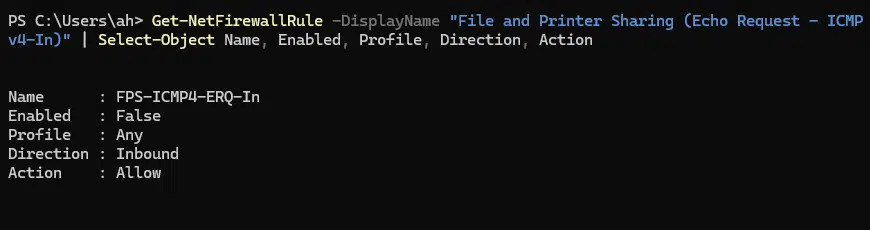
It’s also fixed for my simple “ping” based monitorin in Uptime Kuma.

Conclusion
Enabling Ping via GPO is a basic task that will now take you like 10 minutes including reading this guide. Doing it with this security scoping is what separates a legacy and unsecure environment from a more modern configuration.
We also used this simple level of automation to “magically” let our GPO fix this for all existing and future servers.
Important: Keep your firewall on, allow only what is necessary, and define your scope.
If you have any questions please don’t hesitate to reach out to me on LinkedIn, Bluesky or check my newly created Adaptive Cloud community on Reddit.
LinkedIn: https://www.linkedin.com/in/andreas-hartig/
Bluesky: https://bsky.app/profile/hartiga.de
Adaptive Cloud community on Reddit: https://www.reddit.com/r/AdaptiveCloud/