Setting the time zone on a server was often a manual step during the “Out of Box Experience” (OOBE). Let’s Configure Time Zone using GPOs as it might be something we forget about until the first log entries showed up with the wrong timestamps or we RDPed into the server for the first time.
Table of Contents
No template to Configure Time Zone using GPOs?
Yes, there isn’t a dedicated “Administrative Template” for setting the Time Zone in Windows (even in Server 2025). Microsoft expects you to handle this via localization settings during deployment or via scripts.
Let’s do fix that and build a simple GPO to force the Europe/Berlin time zone on all our servers. This will get less “beautiful” as you might think and want the solution to be.
If you haven’t used Group Policy Objects (GPOs) that much, please start reading my initial blog posts “Group Policies and Group Policies Preferences” and “Automation using Group Policy – Background” to understand the foundation.
Configuring Settings using Startup Scripts with GPOs
While you could fiddle with Registry Preferences (HKLM\SYSTEM\CurrentControlSet\Control\TimeZoneInformation), that is the hard way. It’s prone to errors and doesn’t always trigger an immediate system update.
The most robust method for Windows Server 2025 is a Startup Script using the built-in and hardly known tzutil command or PowerShell. It’s lightweight, native, and “just works.”
Create the GPO
- Open the Group Policy Management Console (GPMC).
- Right-click your desired OU and select Create a GPO in this domain, and Link it here….
- Name it: LAB-Compurer-Settings-Time-Servers
Configure the Startup Script
- Right-click the new GPO and select Edit.
- Navigate to: Computer Configuration > Preferences > Control Panel Settings > Scheduled Task
- Right-click New > Scheduled Task (At least Windows 7).
Important: I have tried multiple ways using the often suggested Start Script approach to set the time zone in a reliable way. For me only the approach using the GPP -> created scheduled task option worked reliable.
See the settings for my approach below. I am using the following powershell command:
powershell.exe -ExecutionPolicy Bypass -Command "Set-TimeZone -Id 'W. Europe Standard Time'"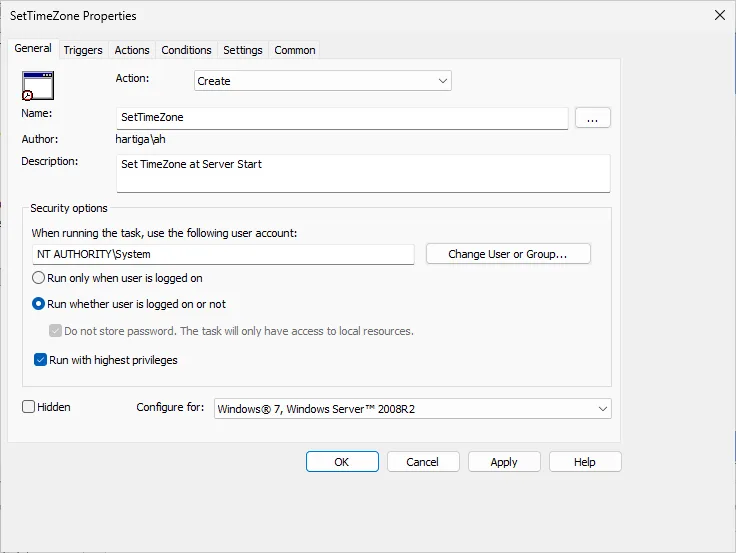
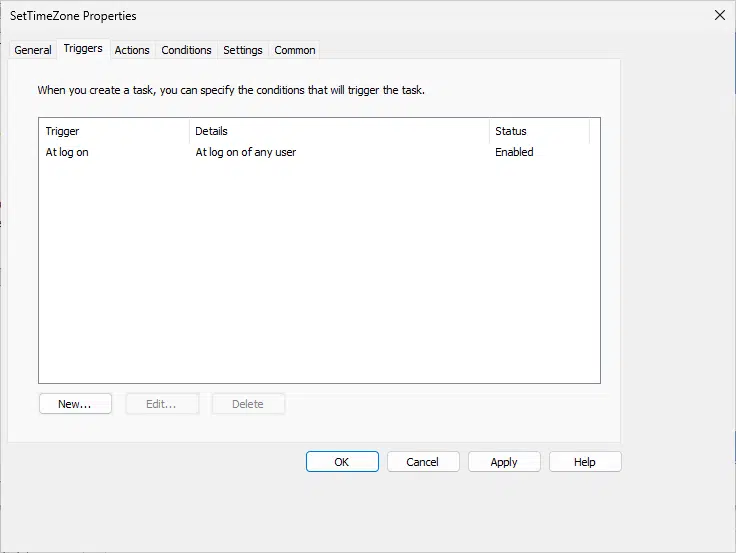
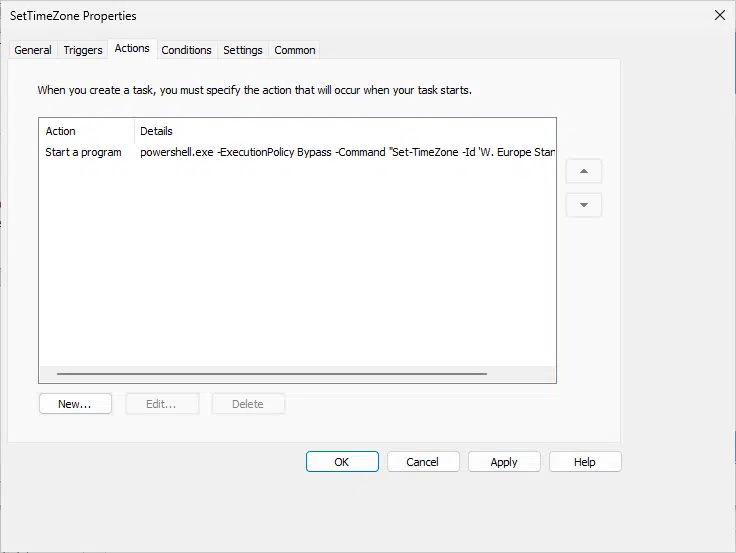
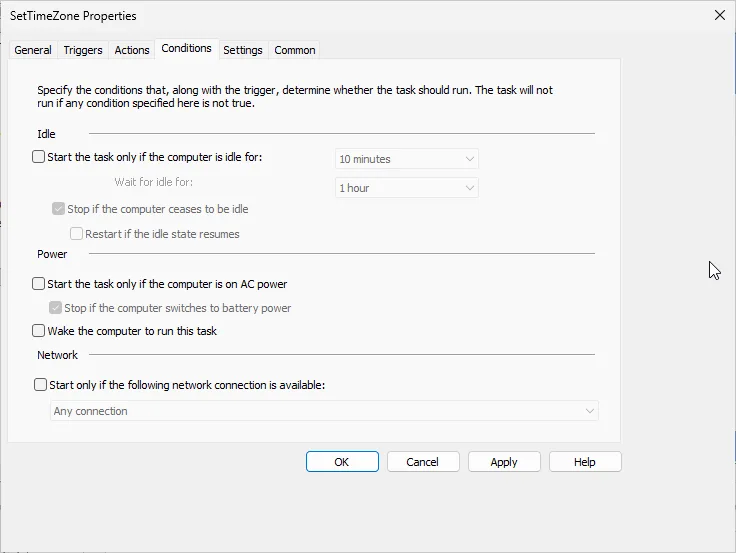
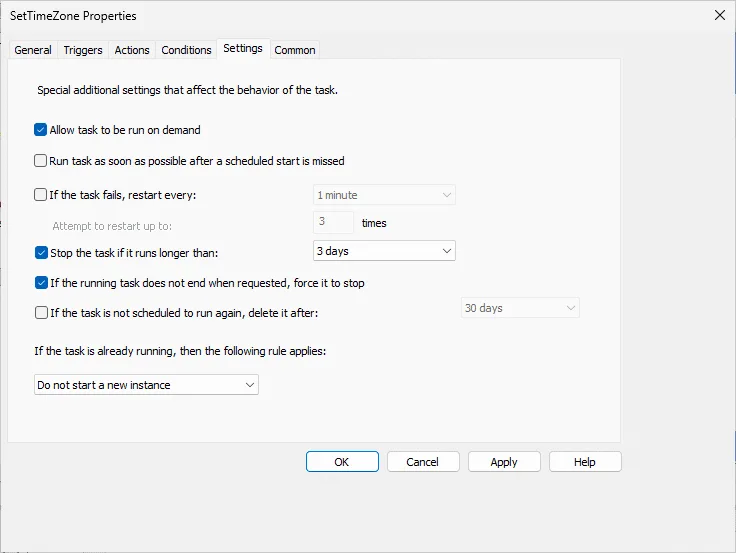
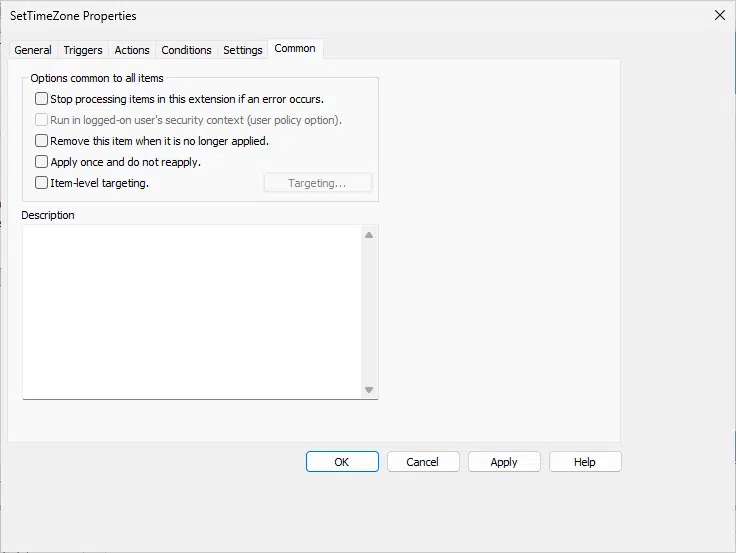
Important: The ID for “Europe/Berlin” in Windows is “W. Europe Standard Time”. Do not use the IANA name (“Europe/Berlin”) directly, as Windows won’t recognize it in these commands.
Apply and Verify
Run gpupdate /force on a test server and see if you can see the scheduled task. If you see it you can run it and it will take effect immediately.
How to Find the Right Time Zone Names
You might be wondering, how to find the correct ID for other regions?
In the Linux world, we use IANA names like Europe/Berlin or America/New_York. Windows, however, uses its own “Time Zone IDs.” If you try to push a GPO with the wrong name, nothing will happen.
The Modern Way (PowerShell)
On any Windows Server 2025 machine, open PowerShell and run:
PowerShell
Get-TimeZone -ListAvailable
This will dump every available time zone. To find the specific ID for a German time zone, filter the list:
PowerShell
Get-TimeZone -ListAvailable | Where-Object {$_.DisplayName -like "*Berlin*"}
Output:
Plaintext
Id                         : W. Europe Standard Time
DisplayName                : (UTC+01:00) Amsterdam, Berlin, Bern, Rome, Stockholm, Vienna
StandardName               : W. Europe Standard Time
DaylightName               : W. Europe Daylight Time
The Id property (in this case W. Europe Standard Time) is exactly what you need to copy into your GPO.

The Traditional Way (Command Prompt)
If you are on a Core server without PowerShell loaded (rare these days, but possible), use the tzutil tool:
DOS

tzutil /l
This lists all IDs. It’s a long list, so you might want to pipe it to a file or search visually.
Sources and more to read
For anything powershell related I suggest the content from Harm Veenstra. Follow him on LinkedIn and check his website PowerShell is fun 🙂
Check out the other three storiers around GPO Automation using Group Policy – Allow Ping on Windows Server 2025, Quality of Life GPO and Enable Azure Arc Auto Updates using WSUS and GPOs.
Conclusion on Configure Time Zone using GPOs
While often a startup script is used to Configure Time Zone using GPOs, I prefer to take an approach with a scheduled task and powershell. If you use my prefered AD OU structure, than you can create and assign GPOs per time zone of your organization to automatically configure all your servers into the correct time zone .
Important: I really tried getting the Startup Scripts options to work and failed. This is my failback option and maybe someone else finds this useful. If you know more elegant ways, always let me know and I am willing to update the documentation and give you credits.
If you have any questions please don’t hesitate to reach out to me on LinkedIn, Bluesky or check my newly created Adaptive Cloud community on Reddit.
LinkedIn: https://www.linkedin.com/in/andreas-hartig/
Bluesky: https://bsky.app/profile/hartiga.de
Adaptive Cloud community on Reddit: https://www.reddit.com/r/AdaptiveCloud/