How do you create a list of all domain controllers (DCs) with a few commands and write it to a CSV file? Comma-separated values (CSV) is a text file format that uses commas to separate values, and newlines to separate records.
Table of Contents
Use Powershell to list all DCs and export to a CSV
We start Powershell ISE first and change to our desired directory for the export. I always change there to Documents or to the download area.
If you don’t work much with command lines, you should get into the habit of pressing the “Tab” key known from Linux to complete commands and paths.
For example, it is sufficient to enter Get-AdD and press Tab twice to make our current command “Get-AdDomainController” visible. In ISE you also have the support of the graphical interface, which is why I personally prefer to work with the ISE module than with the standard Powershell.
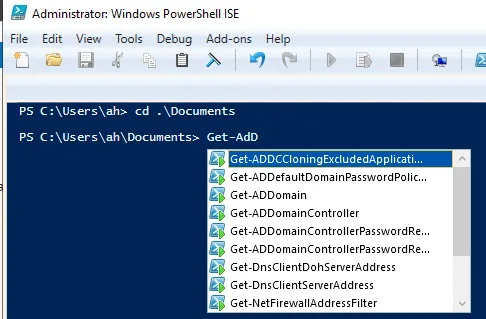
As you can see in the screenshot, I have already changed the directory and am preparing the command. We now enter the following command.
Get-AdDomainController -filter * | Select Name, Domain, Forest, IPv4Address, Site |export-csv -path >alldc.csvIf you now open the file in the path, you will find the following content there
#TYPE Selected.Microsoft.ActiveDirectory.Management.ADDomainController
"Name","Domain","Forest","IPv4Address","Site"
"DC-2025-WEU","domain.test","hartiga.test","10.0.2.5","Default-First-Site-Name"
There is now only one DC in the test environment, but in larger environments this can be over 100 and you save a lot of work if you transfer this to Excel.
In Excel, simply go to Data -> From Text/CSV and select the created alldc.csv file. This then creates the following import, which you can then process further in Excel to synchronize groups or data.
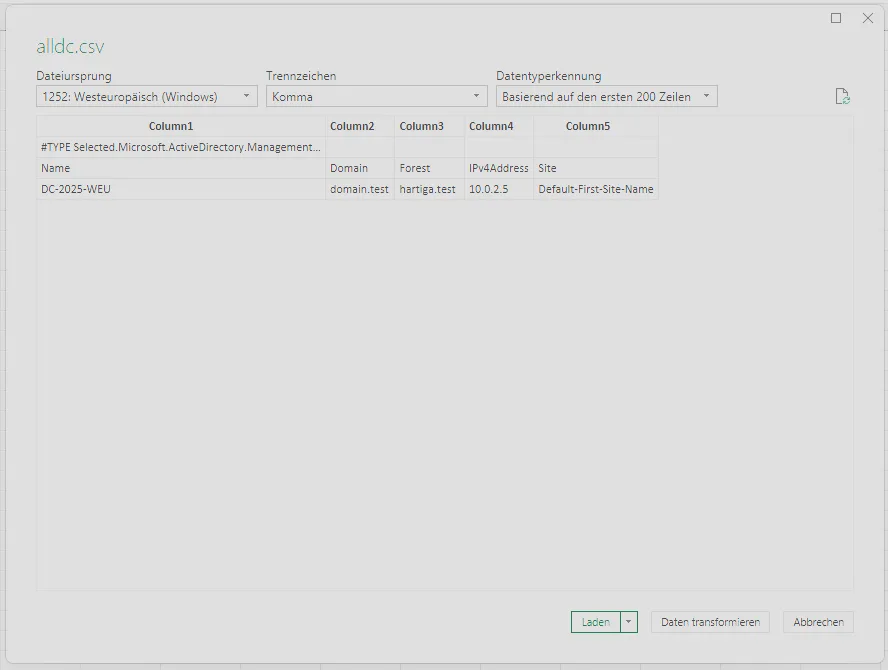
You can add other attributes to the command after the | Select. The list of parameters can be found here at Microsoft.
Which DC am I connected to?
This can be done with the same command and the parameter -Discover
Get-ADDomainController -DiscoverThis is particularly useful if you want to check from the Powershell whether the AD site and service configuration is correct.
This uses the same technique that is used to find the “next” DC when you first log on.
You can also do this in the “classic” cmd, simply enter “set” and then search for the parameter “LOGONSERVER”.
Verify if Active Directory Domain Services are running
Get-Service adws,kdc,netlogon,dnsGet Details about your DC
Get-ADDomainControllerGet Details about your Active Directory Domain
Get-ADDomain ad.hartiga.deReplace ad.hartiga.de with the domain you want to get details for.
Count All computers by Operating System in your AD Domain
This will give you a count of all the computers and group them by operating system. It’s a great command to give you a quick inventory of computers in AD.
Get-ADComputer -Filter "name -like '*'" -Properties operatingSystem | group -Property operatingSystem | Select Name,CountBackup all GPOs in the Domain
If you are working with GPOs and make changes, I would recommend to always run a backup first. The following command will do that for you and you can choose the path to save the files to.
Backup-Gpo -All -Path E:GPObackupConclusion
Using the Command line is a powerful toolset, that can easily help us with information. Especially reproducing the login results to check for AD site and service configuration is a quick win. Just run “Get-ADDomainController -Discover”.
If you quickly need to check on uptime, there is a command to do this here.