Quality of Life GPOs. Finally. My favorite settings. In our previous articles, we established the Group Policies Foundation and discussed the Background of Automation. We also implemented some important GPOs. Now, we focus on fixing the “annoyances.”
Table of Contents
Introduction
This article covers the essential “Quality of Life” (QoL) GPOs that I deploy to every new machine to make it respectful of my time.
If you haven’t used Group Policy Objects (GPOs) that much, please start reading my initial blog posts “Group Policies and Group Policies Preferences” and “Automation using Group Policy – Background” to understand the foundation.
Why “Quality of Life GPO” matters in a Lab
In a production environment, we want friction. We want a admin to pause and think, “Why am I rebooting this domain controller?” or “Should I really be logging into the console?”
In a homelab, friction is the enemy of learning. If I am testing a new cluster configuration and need to reboot a node 10 times in an hour, I do not want to type a justification 10 times. These GPOs are about removing friction so you can focus on the development and architecture.
Important: These settings are recommended for Labs and dev environments. Think twice before applying the “Ctrl+Alt+Del” removal to your production Domain Controllers as it will cause issues during the next audit and will be a finding (no matter what we think about this setting).
Create the Quality of Life GPO
We will create the GPO using our naming convention from the “Automation using Group Policy – Background“.
LAB-Computer-Settings-QualityOfLife-Server
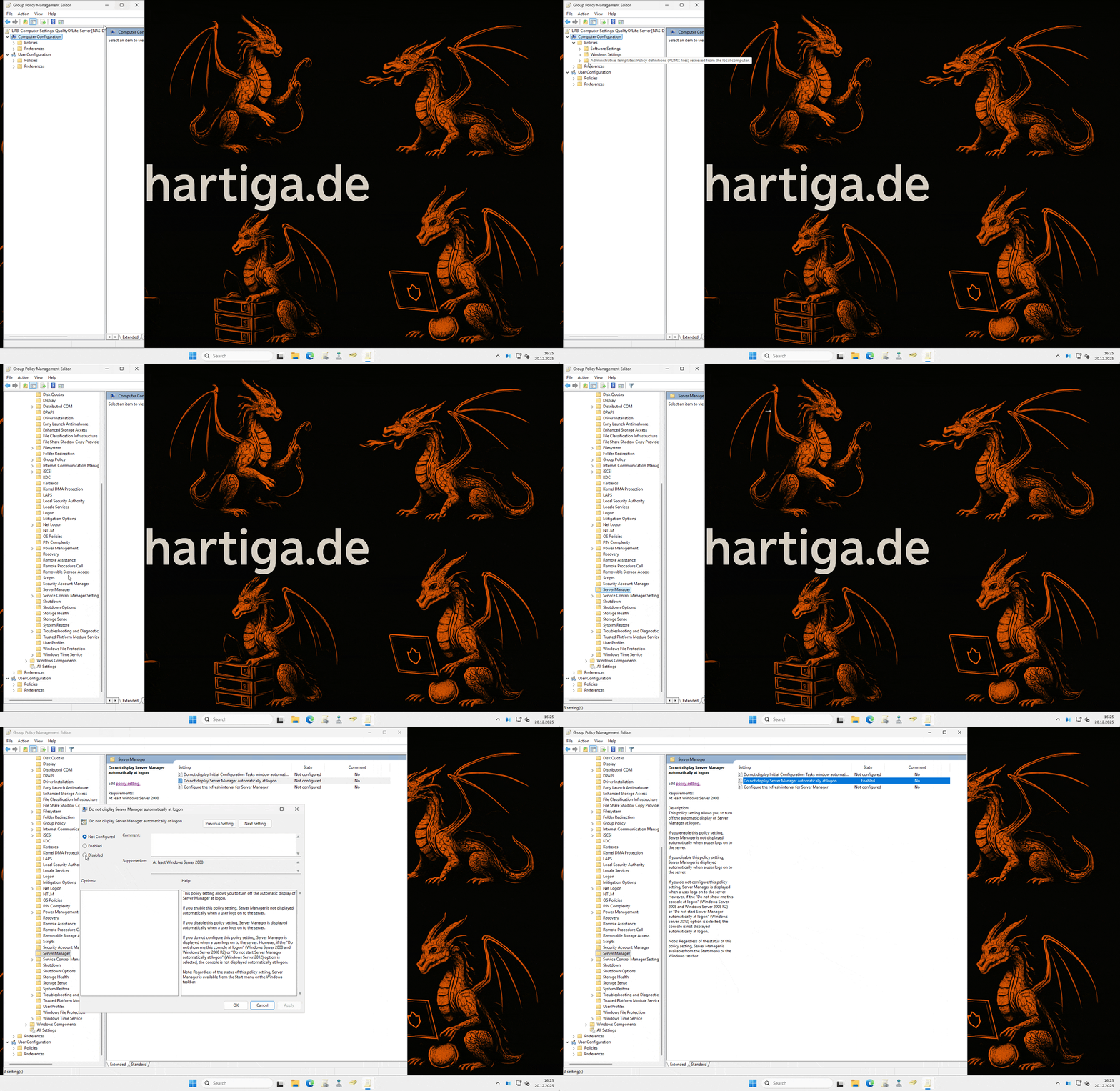
Disable Server Manager
The Server Manager was a great tool in 2012. In 2025, with Windows Admin Center and Azure Arc, it is mostly a legacy window that pops up exactly when you are trying to do something else. Let’s suppress it.
- GPO Path: Computer Configuration > Policies > Administrative Templates > System > Server Manager
- Setting: Do not display Server Manager automatically at logon
- Value: Enabled
Once applied, the server boots straight to the desktop. If you need it, it’s still in the Start Menu.
Suppress “Shutdown Event Tracker”

In a lab, we break things. We reboot often. The “Shutdown Event Tracker” asks you to categorize every restart. While this creates a great audit trail in production, in a lab it just adds two extra clicks to every action.
- GPO Path: Computer Configuration > Policies > Administrative Templates > System
- Setting: Display Shutdown Event Tracker
- Value: Disabled
Now, when you hit restart, it just restarts. Simple.
Remove “Ctrl+Alt+Del” Requirement
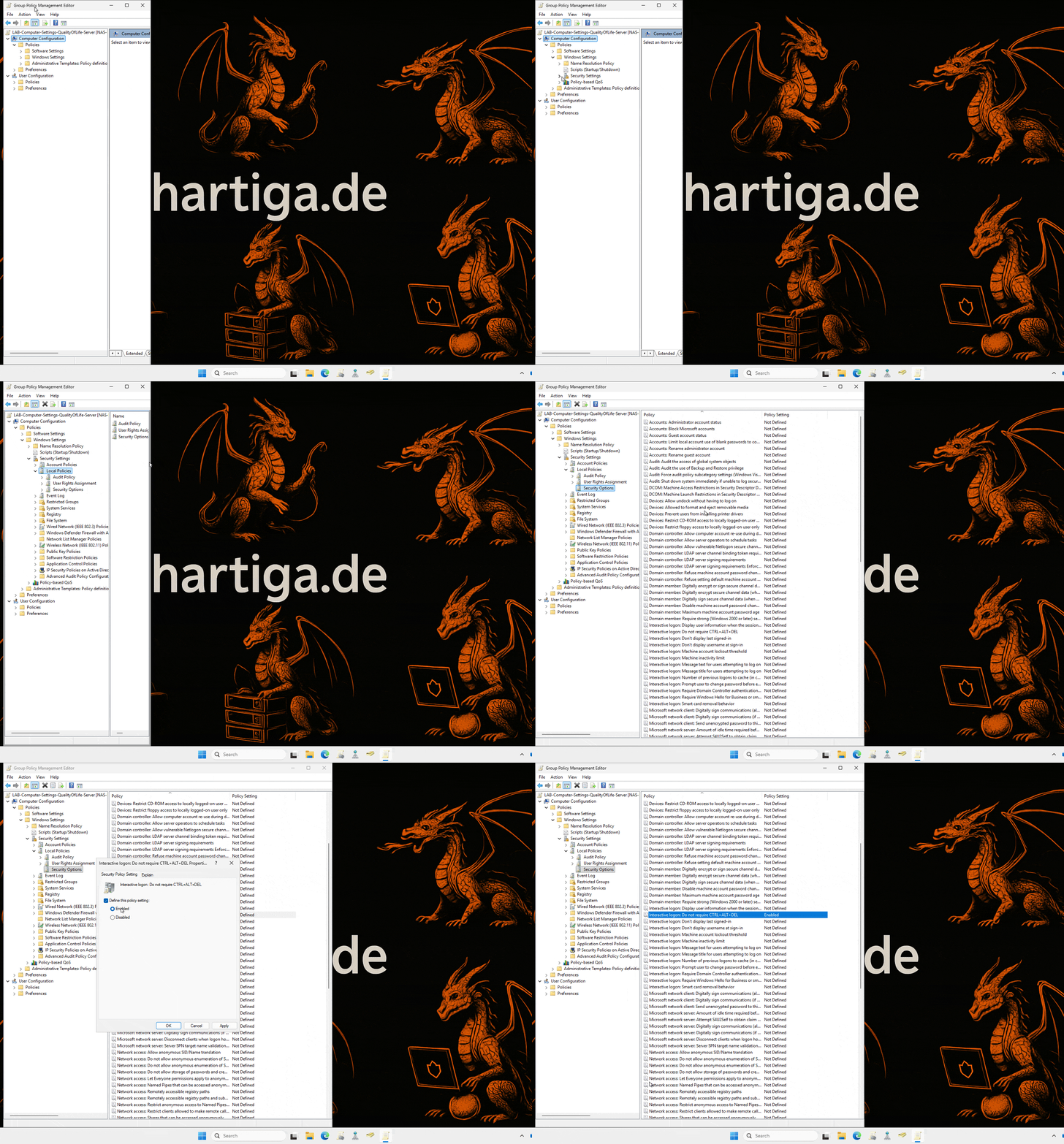
If you are working via a Hyper-V console or a remote web console (like in Proxmox or Azure Stack HCI), sending the “Secure Attention Sequence” (Ctrl+Alt+Del) can be a hassle involving special menu buttons.
- GPO Path: Computer Configuration > Policies > Windows Settings > Security Settings > Local Policies > Security Options
- Setting: Interactive logon: Do not require CTRL+ALT+DEL
- Value: Enabled
Important: This policy is often reverted if you apply the “Microsoft Security Baseline” via OSConfig. Ensure your QoL GPO takes precedence or is applied after the baseline. This is especially true if you followed my guide on OSConfig “Windows Server 2025 – Microsoft.OSConfig” for your homelab.
For the Security Audits this might be a requirement to “tick a box”, but from a technology standpoint it is a dated setting that no longer increases your security footprint in an adaptive clould world.
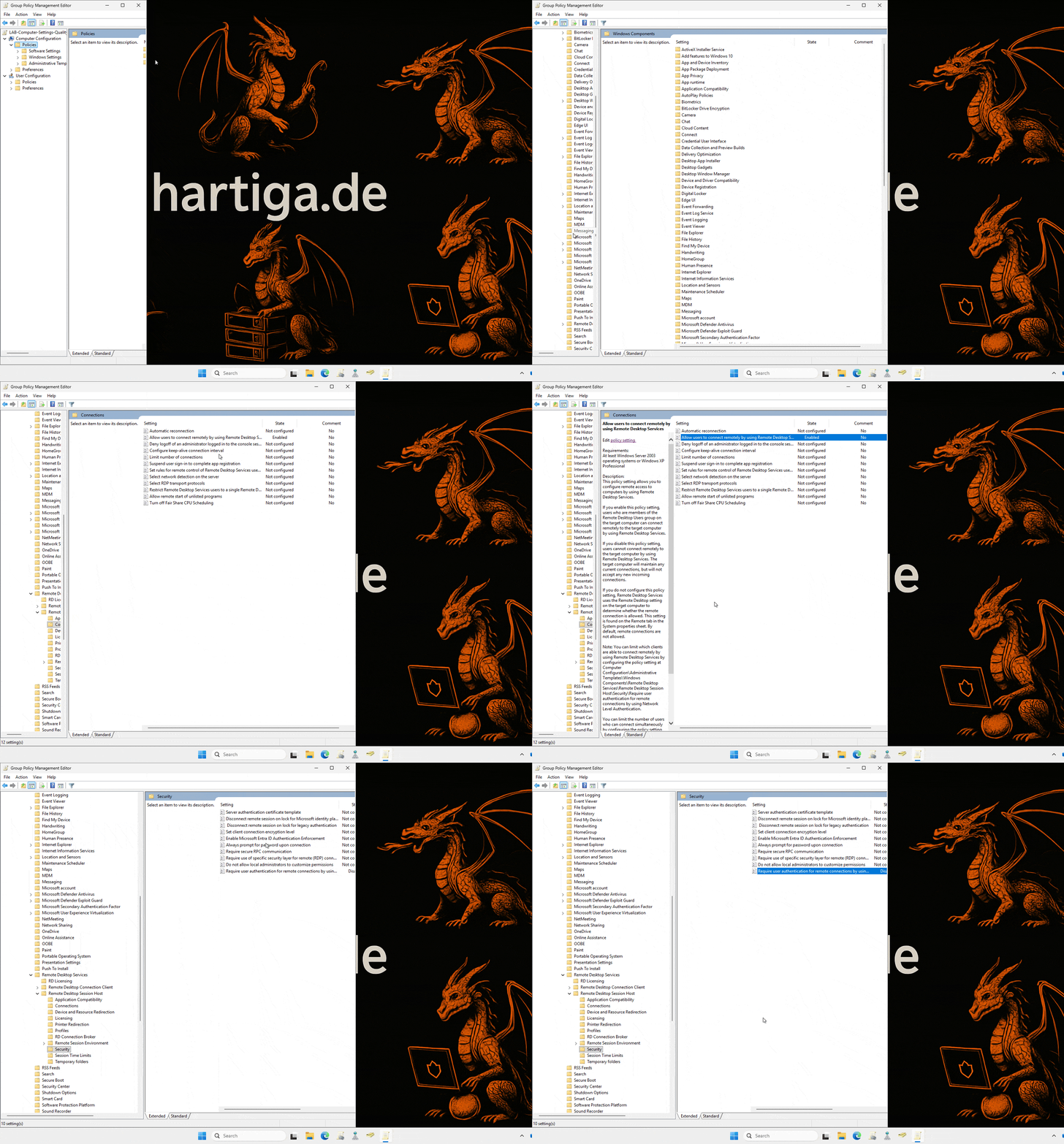
Enable RDP & Require NLA (Quick Config)
Instead of manually clicking through sysdm.cpl on every new VM to enable Remote Desktop, we can do it globally. We also want to ensure Network Level Authentication (NLA) is enforced for security, even in a lab.
This requires two settings:
Enable RDP:
- GPO Path: Computer Configuration > Policies > Administrative Templates > Windows Components > Remote Desktop Services > Remote Desktop Session Host > Connections
- Setting: Allow users to connect remotely by using Remote Desktop Services
- Value: Enabled
Enforce NLA (Security):
- GPO Path: Computer Configuration > Administrative Templates > Windows Components > Remote Desktop Services > Remote Desktop Session Host > Security
- Setting: Require user authentication for remote connections by using Network Level Authentication
- Value: Disabled
Important: Don’t forget to open the Firewall! You can do this via a GPO as well under Windows Settings > Security Settings > Windows Firewall with Advanced Security. If you need help with that, please check the guide to GPO and firewall on the Ping Example “Automation using Group Policy – Allow Ping on Windows Server 2025“
Conclusion on Quality of Life GPO
These four simple changes transform a “nagging” fresh install into a “easier-to-develop” with server. This is the essence of Automation using Group Policy: do the work once, and enjoy the result on every deployment forever.
In the next article in this series, we will look at more advanced customizations, including deploying software automatically using Winget and GPOs. If you haven’t looked into Winget yet, please check my guide on “Easily manage Applications with WinGet v1.x“
You want some specific GPOs or Quality of Life settings? Always looking for inspiration!
If you have any questions please don’t hesitate to reach out to me on LinkedIn, Bluesky or check my newly created Adaptive Cloud community on Reddit.
LinkedIn: https://www.linkedin.com/in/andreas-hartig/
Bluesky: https://bsky.app/profile/hartiga.de
Adaptive Cloud community on Reddit: https://www.reddit.com/r/AdaptiveCloud/