I’ve been testing Windows Server 2025 in my HomeLab, specifically running on a Ugreen NAS. While Ugreen’s hardware is fantastic for storage, its virtualization manager (based on KVM/QEMU) sometimes applies default CPU settings that newer Windows kernels dislike.
Table of Contents
Requirement – Preperation for Windows Server 2025 on Ugreen NAS
This is the lab setup:
- UGREEN NASync DXP4800 Plus 4-Bay 10GbE NAS
- Windows Server 2025 ISO File from November 2025
- Most recent virtio-win ISO file – link
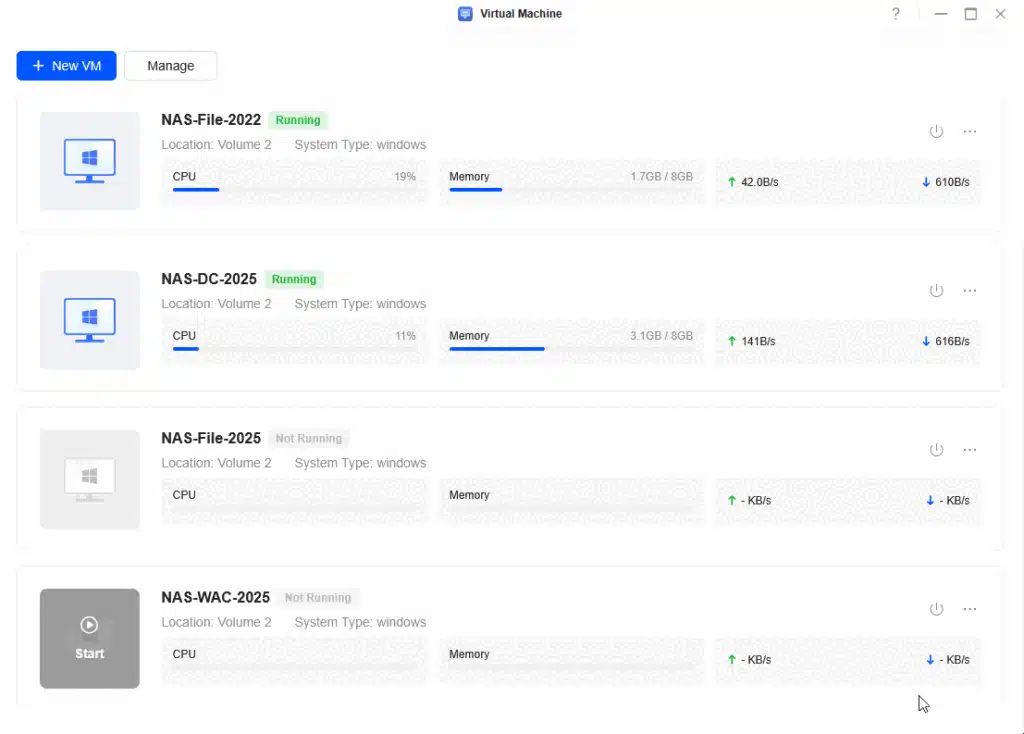
- A Windows Server 2025 VM configured like this
- All devices set to virtio
- 2 CPU / 8 GB RAM
- UEFI enabled
- Completed the Windows Server 2025 installation (no patching, no domain join)
Problem – Issue with Windows Server 2025 on Ugreen NAS
I am getting the below error message after I installed a Windows Server 2025 on the Ugreen NAS using the integrated Virtualization solution. “BdsDxe: failed to load Boot0002 “UEFI Misc Device … Not found”

This happens in a reproducible way when domain joining a Window Server 2025 after installing it on the UGREEN NASync DXP4800 Plus.
Introduction: When the UI Isn’t Enough
We live in a modern world where web interfaces usually solve 90% of our problems. But as an IT Architect, I often say: “To fix the last 10%, you have to go back to the roots.”
If you are experiencing instability or boot issues with your Windows Server 2025 VM on Ugreen, the GUI won’t save you. You need to get your hands dirty with virsh (the command line interface for KVM).
This guide walks you through manually forcing the CPU model to a compatible standard (Skylake-Client-IBRS) to ensure stability. More details about this setting and values can be found here.
The Problem: Windows Server 2025 & KVM Defaults
By default, the virtualization manager might set your CPU mode to host-passthrough. Theoretically, this is great because it passes the host’s exact CPU features to the VM.
However, in practice—especially with the strict hardware requirements of Windows Server 2025—this “pass-through” can cause feature mismatches or instruction set errors on certain NAS CPUs. The fix is to define a “Custom” CPU model that presents a standard, stable architecture to the Windows OS.
The fix – Changing the default settings before the domain join
Prerequisites
Before we dive into the terminal, ensure you have:
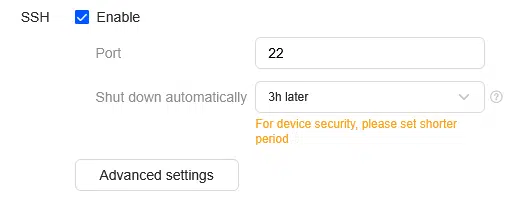
- SSH Access enabled on your Ugreen NAS.
- Root credentials (you need full permissions).
- The VM Name: Know what you named your VM in the web interface (e.g., “WinServer2025”).
Warning: We are editing XML configurations directly. A typo here can prevent the VM from starting. Proceed with caution.
Step-by-Step Implementation for Windows Server 2025 on Ugreen NAS
1. Connect via SSH
Open your terminal (I recommend Windows Terminal, obviously) and connect to your NAS.
ssh root@<IP-Address-of-Your-NAS>
# Enter your password when prompted
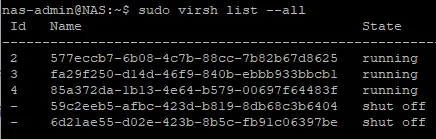
2. Identify the UUID (Don’t Trust the Name)
In KVM, the “Name” column often just displays the UUID. To be professionally competent, we verify we are touching the right machine. We don’t want to accidentally edit a Debian container when we mean to fix Windows.
List all VMs:
sudo virsh list --all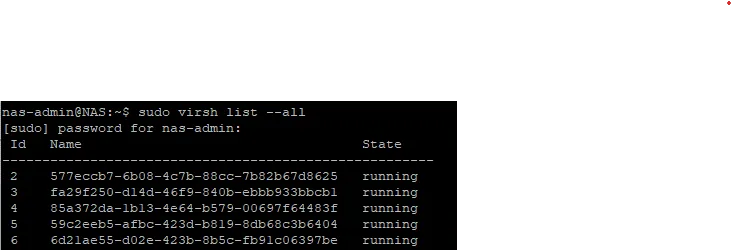
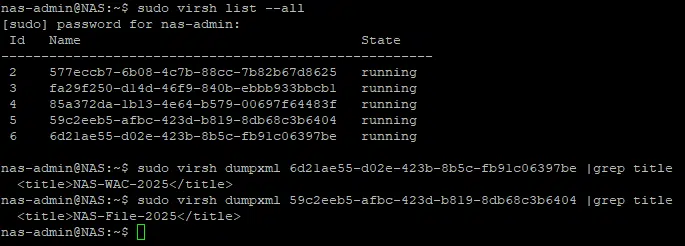
You will see a list of UUIDs. Test them until you find the one matching your Windows Server title:
sudo virsh dumpxml <UUID-FROM-LIST> | grep title Look for output like: <title>Windows Server 2025</title> Once found, copy that UUID.
3. Shut Down the VM
You cannot change virtual hardware while the machine is running.
sudo virsh shutdown <YOUR-WINDOWS-UUID>
Verify it is strictly “shut off”:
sudo virsh list --all
4. Edit the XML Configuration
Now for the “traditional” part. We will use vi to edit the configuration.
sudo virsh edit <YOUR-WINDOWS-UUID>Instructions for vi:
- Scroll down using arrow keys until you find the
<cpu ...>block. - It likely looks like this (Default):XML
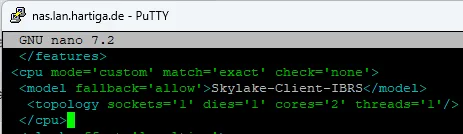
<cpu mode='host-passthrough' check='none' migratable='on'> <topology sockets='1' dies='1' cores='6' threads='1'/> </cpu> - Press
ito enter Insert Mode. - Replace that block with the following “Stable” configuration:XML
<cpu mode='custom' match='exact' check='none'> <model fallback='allow'>Skylake-Client-IBRS</model> <topology sockets='1' dies='1' cores='6' threads='1'/> </cpu>(Note: Ensurecores='6'matches your actual assigned core count!) - Press
Esc, then type:wqand hit Enter to save and quit.
5. Restart and Verify
Power the machine back up:
virsh start <YOUR-WINDOWS-UUID>Why Skylake-Client-IBRS to run Windows Server 2025 on Ugreen NAS
Skylake-Client-IBRS is a “safe harbor” CPU model in the virtualization world. It includes modern instruction sets required by Windows Server 2025 but abstracts away the specific quirks of the physical NAS processor. It also includes IBRS (Indirect Branch Restricted Speculation), which is critical for security mitigations (Spectre/Meltdown) that Windows expects to see present.
Conclusion
Deploying operating systems on edge appliances like Ugreen NAS requires a blend of modern ambition and traditional Linux skills. By manually defining the CPU topology in the XML, we trade a bit of “native performance” (passthrough) for guaranteed stability.
For an Architect, stability always wins.
Next steps for you: Check your Windows Event Logs inside the VM after booting. If the “Hardware Error” events are gone, you have successfully stabilized your build.
Happy Home-Labing!
If you have any questions please don’t hesitate to reach out to me on LinkedIn, Bluesky or check my newly created Adaptive Cloud community on Reddit.
LinkedIn: https://www.linkedin.com/in/andreas-hartig/
Bluesky: https://bsky.app/profile/hartiga.de
Adaptive Cloud community on Reddit: https://www.reddit.com/r/AdaptiveCloud/
References & Further Reading
As an architect, I believe in showing my work. Below are the official documentation sources used to validate this solution, along with links to connect with me for further discussion.
Technical Documentation
- Microsoft Learn – Windows Server 2025: What’s new in Windows Server 2025
- The official source for hardware requirements and new features.
- Libvirt Documentation: Virsh Command Reference
- The comprehensive manual for the CLI tool used in this guide.
- QEMU CPU Models: QEMU/KVM CPU Model Configuration
- Details on why
Skylake-Client-IBRSand other CPU models are used for stability.
- Details on why