Azure Arc Auto Updates is key, as the foundation of your hybrid cloud strategy and it’s single contral plane in Azure is the Connected Machine Agent. While we often focus on the workloads running on top of our servers, the bridge connecting them to Azure needs regular maintenance to remain secure and functional.
Table of Contents for Azure Arc Auto Updates
Introduction to Azure Arc Auto Updates
In this first part of our series, we look at the modern way to handle this using the Azure Portal and the newly available Automatic Agent Upgrade (public preview as of 09.04.2026). We will move away from manual scripts and embrace built-in Azure governance to ensure our fleet stays current.
Why Azure Arc Agent Updates Matter
Maintaining the Azure Arc agent isn’t just about getting the latest features; it is a critical requirement for supportability and security.
- 12-Month Support Window – Microsoft maintains a strict support policy for the Connected Machine Agent. Only versions released within the last 12 months are supported. Once an agent falls outside this window, you risk losing technical support for that resource.
- Security & Bug Fixes – Like any software, the agent receives critical patches to address vulnerabilities and improve performance.
- Feature Parity – New Azure services (like advanced Monitoring or Security features) often require a minimum agent version to function correctly.
Important: Maintaining one supported version across your organization will reduce your operational teams workload and reduce security and audit issues for you.
Understanding Azure Arc Automatic Upgrade
Azure Arc Agent Automatic Agent Upgrade using the Azure Portal and Azure Policies, which is currently in Public Preview, allows Azure to manage the lifecycle of the agent for you. Instead of you pushing updates, the platform orchestrates the process.
It works by checking for new versions and applying them during low-usage periods. The best part? You can control this at scale using Azure Policy. This ensures that every new server onboarded to a specific Resource Group or Subscription automatically inherits the “Auto-update” configuration.
Important: Using different Resource Groups you can update your test servers first and execute the policy for other laters. Design and Targeting in a staged approach matters for any update process.
Step-by-step: Implementation via Azure Portal
The most efficient way to enable this across your fleet is through Azure Policy. Follow these steps to automate your update management.
- Navigate to Policy Open the Azure Portal and search for Policy.
- Assign Definition Go to Assignments and select Assign policy.
- Define the Scope Select your Subscription and, ideally, a specific Resource Group (e.g., your “Azure-Arc-Servers” group).
- Select Policy In the Policy definitions, search for: Configure Azure Arc-enabled servers to enable automatic upgrades.
- Configure Parameters In the parameters tab, ensure the effect is set to DeployIfNotExists. This ensures that if a server doesn’t have auto-update enabled, Azure will fix it for you.
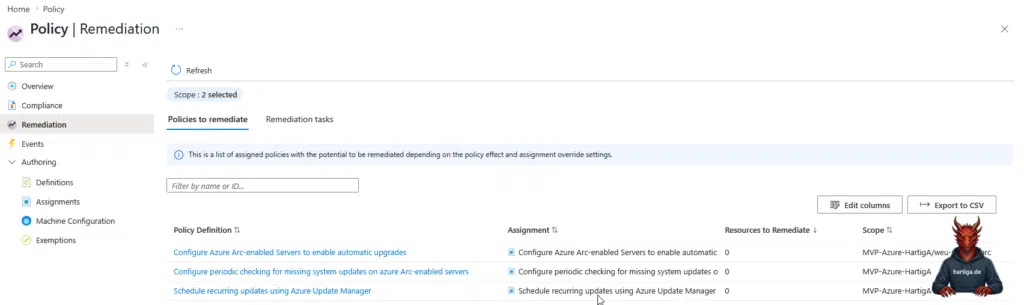
- Remediation Ensure you create a Remediation Task during the assignment process. This will apply the policy to existing servers, not just new ones.
- Review and Create Once validated, click Create.
You can see the full process in action here:
Important: Automatic upgrade currently supports Windows and Linux, but ensure your network allows access to the necessary Microsoft download endpoints.
My recommendations for Azure Arc Auto Updates
Don’t apply the policy to your entire production environment at once. Start with a Dev/Test Resource Group to validate that the update process doesn’t interfere with your specific legacy applications.
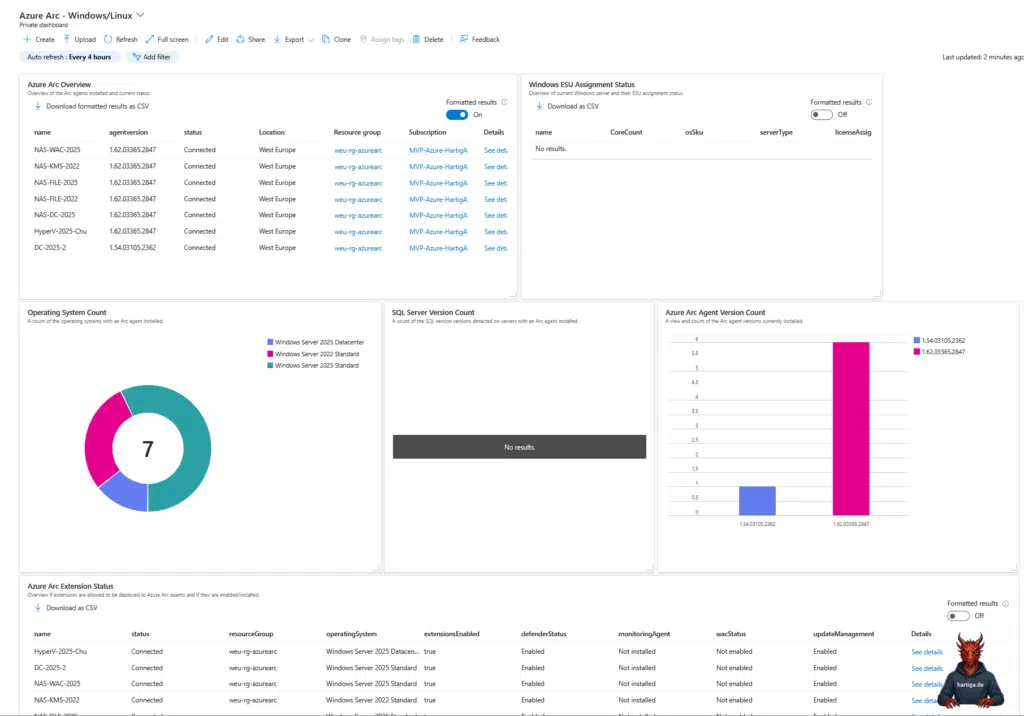
Use Resource Graph queries and Dashboards to track which versions are currently active across your fleet. It provides a “telling it like it is” view of your compliance state. I recommend starting with the guide available on the Azure Arc Jumpstart Website for “monitoring-alerting-and-visualization-on-azure-arc-enabled-servers”, the official Microsoft Learning website “Management and monitoring for Azure Arc-enabled servers” or check the community guides here.
Simply assigning a<policy only affects future resources. Always run the Remediation Task to bring your existing “brownfield” infrastructure up to the modern standard.
Conclusion
Automating the Azure Arc agent update is a prime example of moving from traditional “manual patching” of servers to a modern IT architecture. By leveraging Azure Policy, we ensure our environment stays within the 12-month support window without lifting a finger.
Stay tuned for Part 2, where we will look at how to handle these updates using Group Policy Objects (GPOs) for those scenarios where local control is still a requirement.
If you have any questions please don’t hesitate to reach out to me on LinkedIn, Bluesky or check my newly created Adaptive Cloud community on Reddit.
LinkedIn: https://www.linkedin.com/in/andreas-hartig/
Bluesky: https://bsky.app/profile/hartiga.de
Adaptive Cloud community on Reddit: https://www.reddit.com/r/AdaptiveCloud/
YouTube Channel: https://www.youtube.com/@hartiga