COM Port Management with no administrator rights is a challenge. You might have noticed that I am currently involved in IT and OT discussions. During OT modernization, I encountered a unique challenge in a transformation project. This short guide covers a tool for configuring COM Ports on clients without local admin rights. The tool is developed by Uwe Siebers and is available here.
Table of Contents
What is ComPortMan
ComPortMan is a Windows service that allows for managing COM port assignments in Windows. Operating as a service grants autonomy from the permissions of the user currently logged in, eliminating the necessity for users to have the authority to modify COM ports. New default COM port numbers can be specified based on various criteria.
Installation
You can download the current version using this path https://www.uwe-sieber.de/files/ComPortMan_x64.msi and if required, there is also a 32 bit version on the download page.
he installation requires Admin Rights and is fully transparent, with no active screens or configuration options. To validate it has been installed, you can check the Add / Remove programs or “Apps and Features” in the Windows Settings.
What is COM Port Info?
COM Port Info belongs natively to ComPortMan, but is handy standalone too.
COM Port Info is part of ComPortMan, but it is also useful as a standalone tool. It is a tool developed alongside ComPortMan, offering standalone functionality as well. It provides users with essential information on COM ports, aiding in efficient management and configuration. This tool is particularly beneficial in scenarios where users lack local admin rights but still need to manipulate COM ports. Its integration with ComPortMan ensures seamless compatibility and enhanced utility for users working on COM port assignments. Furthermore, COM Port Info supports US English language, aligning with standard language preferences for ease of use in diverse environments.
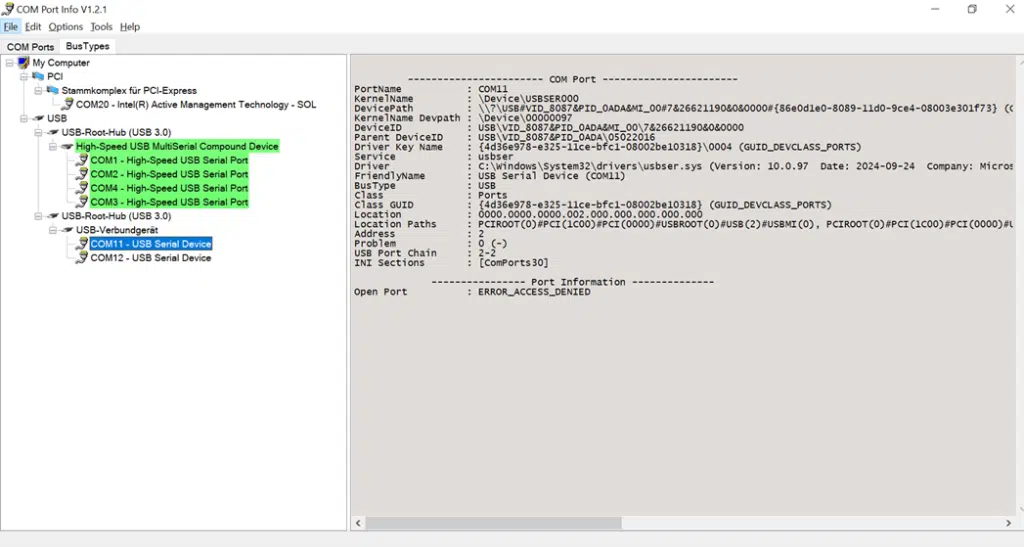
The screenshot above shows an example of an HP Elitebook 640 G10 after installation and use of C:\Program Files\ComPortMan.ini. Depending on your OS version you also might find the ComPortMan.ini file in redirected folders. You can use the -edit_ini.cmd located in C:\Program Files\ComPortMan\ to modify it, when you are not sure where it is located.
Configuration and Options for COM Port Management
There are two important options to be aware off and modify to your needs.
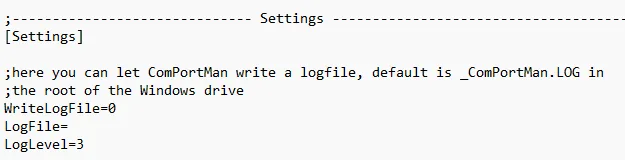
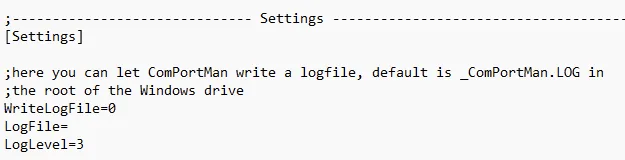
The settings shown here enable the writing of a log file with the recommended log level 3 and in the program directory of the default installation.
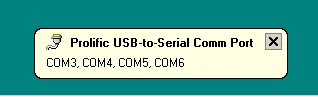
The activated balloon tips show the changed ports when hardware changes are made, e.g. by unplugging and plugging in the Delock USB 2.0 to 4 x Serial RS-232 adapter.
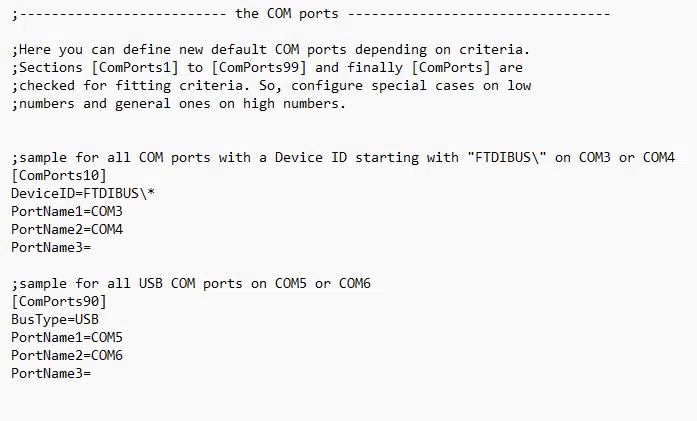
Editing the ComPortMan.ini
When editing this file you need to pay attention to a few important settings and rules.
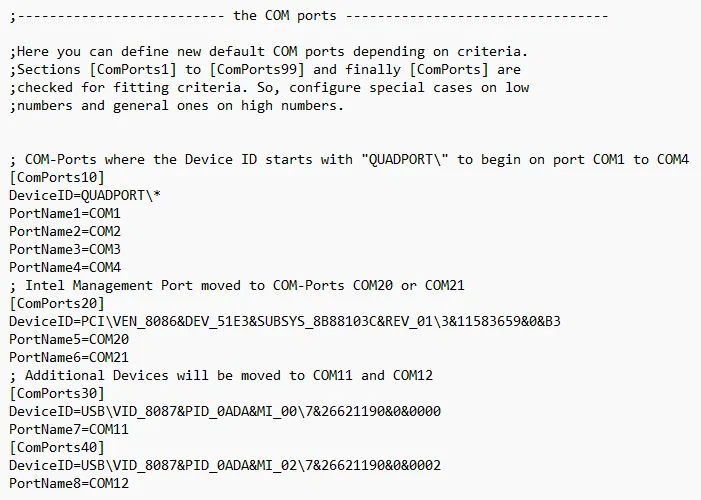
a) The various configuration blocks must be numbered consecutively, i.e. [ComPorts10], [ComPorts20], [ComPorts30], [ComPorts40], etc.
b) The PortNameX designations must be consecutive, i.e. PortName1, PortName2, etc.
c) To configure the various areas, DeviceIDs can be read from the Device Manager or the ComPort Info Tool mentioned above. For the Delock adapter, we use the DeviceID “QUADPORT” to assign COM1 to COM4 to the USB adapter from Delock.
d) The DeviceID PCI\VEN_8086&DEV_51E3&SUBSYS_8B88103C&REV_01\3&11583659&0&B3 reserves COM ports 20 & 21 and moves the Intel Management Port to Comport 20 / 21
e) Additional device ports are occupied by the HP Elitebook 640 G10 hardware and moved to ports COM11 & COM12
IMPORTANT: Deviating from or double-assigning the consecutive numbers of the port names or a non-consecutive number of the [ComPorts] can lead to errors. “Bending” currently assigned ports, such as the Intel Management Hardware, requires a reboot.
Conclusion on COM Port Management
COM Port Management on Windows 10 and newer Operating devices is a pain. It is a legacy component, that can only be configured in the device manager and always requires local admin rights. ComPortMan simplifies COM Port management by allowing predefined device-port assignments without requiring local admin rights, ensuring smooth operation in IT and OT environments
When connecting a device that identifies itself as a COM port for the first time, Windows assigns the first COM port number that has never been used in the entire lifetime of the Windows installation. The port number can then be changed in the Device Manager with a few clicks.
The whole process starts again for each new COM port, as well as when you connect a USB device that does not have a USB serial number to a different USB port—without a serial number, it will not be recognized as the same device. This makes Com Port Management a pain. Especially when you have devices that require a specific COM Port.
If a COM port is removed, its port number remains reserved.
With ComPortMan, you can predefine which devices are assigned which port numbers based on criteria.
This allows COM Port Management in an OT environment without requiring local admin rights.
Licensing and Developer Support
Please support Uwe Siebers and pay attention to the licensing. Details can be found here. Follow me for more Adaptive Cloud, Azure, Hybrid Cloud and IT vs OT content. Start with my article on how to bridge the gap between IT and OT.