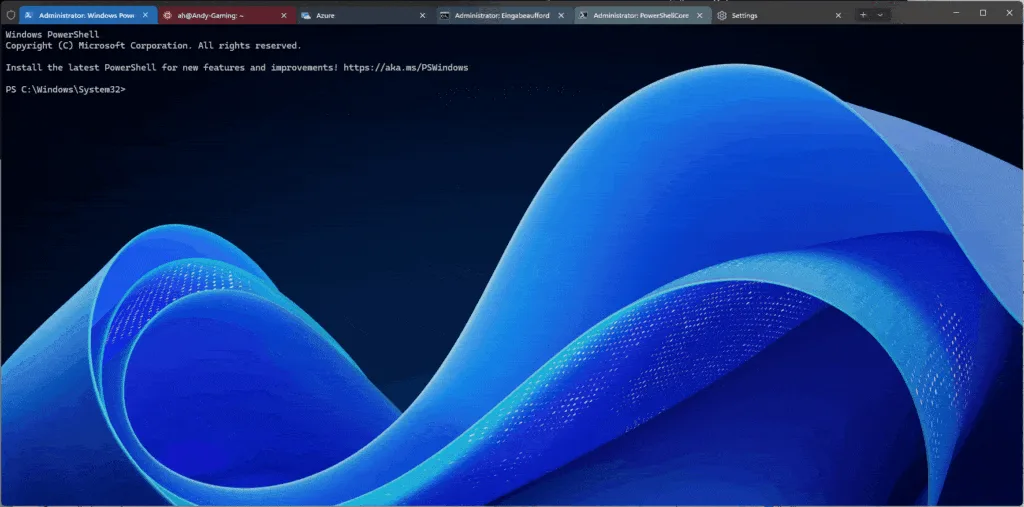
I wanted to personalize my Terminal setting as part of upcoming articles and being more technical lately. Turned out… it’s not that easy and you require some reading of documentation.
Table of Contents
Installation of Windows Terminal
I only use Winget to take care of these things and here is how you can do it now. The other option is a manual installation using GitHub.
The Terminal was originally announced back in 2019 and if you haven’t been using it, better start today for a productivity boost. The article is by Thomas Maurer, who also inspired me and his blog posting on the settings.json helped me.
Goal of customization
For my documentations and blog work I want to have a visible background to detect my work and screenshots. The second motivation was to help me using the right commands per each of the terminal tabs and support this with some visualization.
Existing documentation for settings.json
There are quite a good amount of articles and documentation you should read.
- Download and Install Windows Terminal by Thomas Maurer
- My Customized Windows Terminal Settings.json by Thomas Maurer
- Customize Windows Terminal by Microsoft
Value of this documentation
First feel free to download my settings.json, how I modified it and learn where to locate the background files.
The first challenge is to find our settings.json on your client. Mine was located here: C:\Users\ahart\AppData\Local\Packages\Microsoft.WindowsTerminal_8wekyb3d8bbwe\LocalState. Make sure you change the username accordingly to your local username.
My changes to the file were with these global parameters, that are located in the upper section:
- “copyOnSelect”: true, //this will automatically copy everything I select in the cmd to my clipboard
- “firstWindowPreference”: “persistedWindowLayout”, //make sure the same windows / tabs reopen on the next start
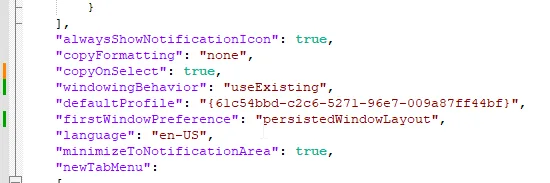
For each of the tools / commands I want to use, I do need to modify it in the “list” section of the stettings.json.
- “tabColor”: “#3c607e”, – Changes the tab color when started
- “backgroundImage”: “C:\\Users\\ahart\\OneDrive\\Bilder\\terminal\\WindowsServer 2025Background-light.png”, – does present a background fitting to the use case I have with those tools
- “backgroundImageOpacity”: 0.1 – Some pictures require opacity to be able to read correctly

Windows Terminal – List / Profil Settings
Important: My config file will not to work, because it is using files located in my onedrive path. Make sure you create files from the type png in a path on your system(s) and change it accordingly in the settings.json.
To find the RGB code for the “tabColor” I do use the Color Picker from the Powertoys.
When done correctly it will look similar to this one.
If you want to use my settings.json as a foundation for your own file, it is available here.