You are receiving error 0xC004FC07 when trying to apply a license to your Windows Server 2022 / 2025? Maybe your server is randomly shutting down after a few hours? This could be related to an invalid license being installed or someone started with an evaluation license, which is now expired. Let’s fix that.
Table of Contents
Background on Error 0xC004FC07
An expired evaluation license can prevent Windows from activating properly, leading to errors like 0xC004FC07. If you’re using a Windows Server Evaluation version, it typically comes with a 90-day trial period, after which the system will display a license expired message and may shut down periodically.
Here are some steps you can take:
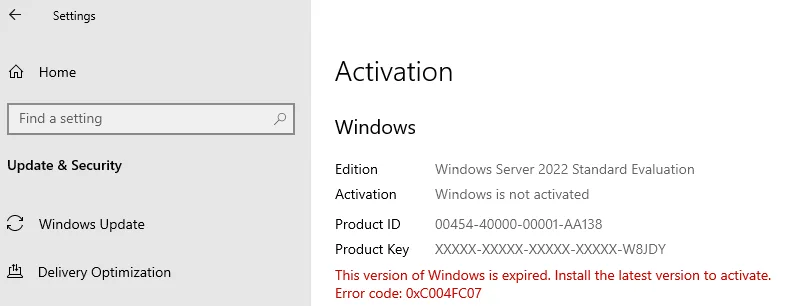
- Check the activation status: Go to Settings > Update & Security > Activation to see if Windows is still in evaluation mode.
- Rearm the evaluation period: You can try running
slmgr -rearmin Command Prompt (Admin), but this may not work if the license or evaluation version has fully expired. - Purchase a valid license: If you want to continue using Windows Server, you may need to buy a full version and perform a fresh installation.
- Verify system time settings: Sometimes, incorrect system time settings can interfere with activation.
Getting 0xC004FC07 or 0xC004F069 when adding a license
When looking into your System Settings you might see the following screen showing the error.
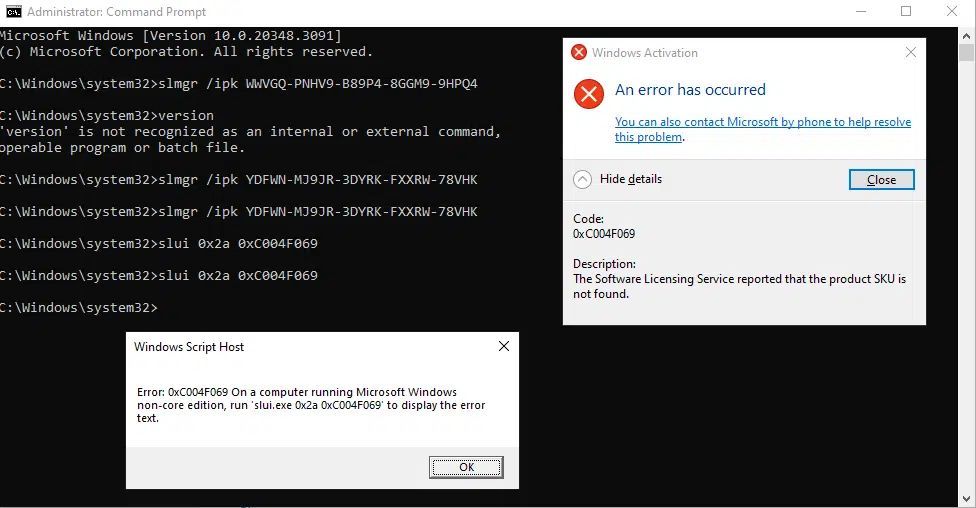
You could also get the error when running the following command to install the license. The below code is the example license for AVMA, which can be found on the Microsoft page here).
slmgr /ipk YDFWN-MJ9JR-3DYRK-FXXRW-78VHKAs you can see this error is related to the SKU not found (evaluation version has expired).
What is slui.exe?
The slui.exe command in Windows is a system process known as the Windows Activation Client. It plays a crucial role in activating Windows licenses and verifying their authenticity. This command allows users to manage activation tasks, such as entering a product key or activating Windows via the internet or phone. It is typically used when changing or updating the product key for Windows operating systems.
Fixing the error 0xC004FC07 or 0xC004F069
The recommendations on learn.microsoft.com and the community support are often misleading. In my scenarioes encountered in the homelab, I needed to update the OS version and manually apply the license key.
Luckily this can be done in one step and without downloading and creating OS installation files, like I showed here using Rufus.
My fix in those scenarios is to run a verify on the Operating System and apply the License key at the same time. In case you do this in Azure, please make sure you add the /EULA part. This is also a trick, if you need to do in place upgrades in Azure.
DISM /online /Set-Edition:ServerStandard /ProductKey:YDFWN-MJ9JR-3DYRK-FXXRW-78VHK /AcceptEula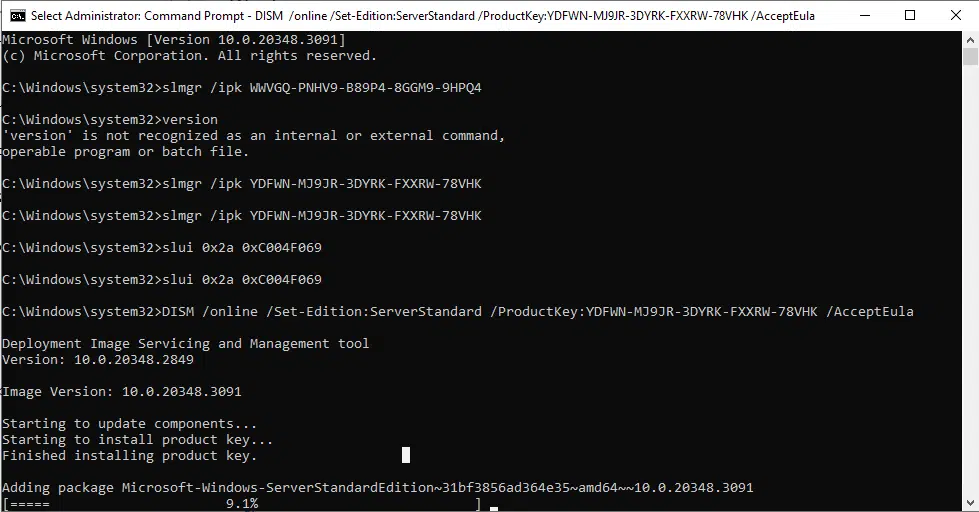
Be patient. The DISM process can take a while and be stuck at 9 or 10% for a while. After the process has been completed, the system will ask to reboot. Since I am using AVMA for simplifying offline device activation, it will already be activated.

Make sure you use the correct Windows Server Edition and Product Key for your use key. The AVMA Keys for each OS and version can be found here.
The /Set-Edition parameter in the DISM (Deployment Image Servicing and Management) command allows you to upgrade a Windows Server image to a higher edition within the same edition family. The available editions depend on the specific Windows Server version you’re working with. For example, common editions include:
- Standard
- Datacenter
- Essentials
To see the exact editions available for your image, you can use the /Get-TargetEditions parameter with DISM. Here’s an example command:
DISM.exe /Online /Get-TargetEditionsThis will list all the editions you can upgrade to for the currently running Windows Server.
Conclusion
This command is a useful trick for performing in-place upgrades with Windows Server 2022 / 2025. The DISM process may appear to stall at 9 or 10% but be patient. Once the process is done, a system reboot will be required. I use AVMA for offline device activation, which ensures that the system is already activated. In conclusion, this command provides a convenient solution compared to the traditional update process, making it worth trying when encountering the mentioned errors.